MCP Apps are an extension to the Model Context Protocol (MCP) that lets an MCP server return an interactive UI widget alongside a tool result. Microsoft 365 Copilot added support for MCP Apps in early April 2026. If you’re still mapping out
how Microsoft 365 Copilot works, that foundation helps here. Since then, Copilot renders that widget in a sandboxed iframe right inline in the chat, so your declarative agent can mix natural language with real, working UI.

PTO Request Form Rendered Inline in Copilot
MCP App widget prompting the users PTO request details
This is the single biggest upgrade to the declarative agent developer story since actions shipped. In this article I’ll explain what MCP Apps are, how they work under the hood, how Microsoft 365 Copilot (M365 Copilot) displays them, and when you should reach for them instead of adaptive cards.
Series: Create Interactive UIs for Microsoft 365 Copilot Agents With MCP Apps
This is the first article in a multi-part series: Create Interactive UIs for Microsoft 365 Copilot agents with MCP Apps; the articles in this series include:
- What are MCP Apps? Interactive Widgets in Copilot Chat (this article)
- Add an MCP server with UI widgets to a Microsoft 365 Copilot declarative agent project
- Integrate an MCP Apps server into a M365 Copilot declarative agent
- Wire an MCP Apps server into the F5 debug experience of the M365 Agents Toolkit
Microsoft quietly shipped MCP Apps support in Copilot in April 2026, announcing it on April 7, 2026. Everything I cover here is generally available as of June 2026; you can build this today. For the announcement, see the Microsoft 365 Developer Blog post and the Microsoft Learn documentation on declarative agent UI widgets. As of June 2026, MCP Apps widget rendering is supported only in declarative agents created with the Agents Toolkit for VS Code; Copilot Studio agents support MCP servers for tool calls but not inline widget rendering. I’d expect that to change.
Why natural language alone isn’t enough
Natural language alone isn’t enough because every clarification, confirmation, and data summary becomes another round trip of text, and some experiences (visualizations, dashboards, filtering, interactive maps) simply can’t be expressed well as a paragraph. Here’s what that feels like in practice.
Think about a standard Copilot conversation. You tell the agent “I want to take a long weekend in Miami starting next Friday.” The agent responds with clarifying questions: do you mean Friday the 8th? How many hours of PTO do you want to use? You type back answers, the agent summarizes, you confirm in text, and on it goes. It works, but it’s clunky. Every clarification is another round trip, every confirmation is a sentence the user has to compose, and every piece of data the agent presents is a wall of text.
Adaptive cards have been the traditional answer to this, and to be clear, they’re still useful. They’re JSON, there’s no code to write, and they’re great for simple forms, confirmations, and previews of data returned from an action. But what about visualizations? Filtering and sorting? A dashboard? A multi-step wizard? A map of your vacation itinerary you can actually click on? That’s where adaptive cards run out of road, and that’s exactly the gap MCP Apps fill.
Where MCP Apps came from (and which spec to bet on)
If you’ve followed this space, you’ve probably heard three different names thrown around, and it’s worth being clear about how they relate because the naming situation is, in classic fashion, more confusing than it needs to be:
- MCP UI came first. It was a community concept: when an MCP client executes a tool on an MCP server, the server responds with HTML that the client renders inline in the chat.
- OpenAI Apps SDK was OpenAI’s own take on the same idea, built for creating apps that run inside ChatGPT.
- MCP Apps is the official answer. Anthropic, the steward of the MCP specification, took what MCP UI and OpenAI were doing and formalized it as an extension to the MCP spec.
M365 Copilot supports both MCP Apps and the OpenAI Apps SDK. So if you have widgets that were built for ChatGPT, they’ll work in Copilot too. But if you’re starting a brand new project, my recommendation is to build on MCP Apps. It’s the vendor-neutral standard that everything else will converge on, and an MCP server that returns MCP Apps works not just in M365 Copilot but in Claude, ChatGPT, and any other host that supports the extension.
How do MCP Apps work?
MCP Apps work by letting an MCP server attach a self-contained HTML widget to a tool result. When Microsoft 365 Copilot calls the tool and sees that attachment, it renders the widget in a sandboxed iframe inline in the chat instead of summarizing the result as text. Everything else about the MCP server stays exactly as it was.
The mental model is simpler than you might expect, because MCP Apps don’t replace anything. They’re purely additive to a standard MCP server. Your server still exposes tools: named operations with a description and an input schema that teach the MCP client (in our case, the Copilot orchestrator) what’s available and how to call it. MCP Apps add two things on top.
Part 1: Tool (via MCP server) exposing the resource ID
First, a tool can declare that it has a UI associated with it. It does this through a _meta property on the tool definition that points at a resource URI using a ui:// scheme, something like ui://pto-request/pto-request.html. When Copilot receives the tool result and sees that property, it knows this tool result isn’t meant to be summarized as text; there’s a widget to render.
Part 2: Resource (via MCP server) returning the HTML, images, and JS for the widget
Second, the MCP server registers a resource at that same URI. When Copilot requests the resource, the server doesn’t return a link to a page on your web server. It returns the entire contents of the widget: all the HTML, JavaScript, and CSS in one self-contained payload. Copilot then creates a sandboxed iframe inline in the chat and renders that content inside it. This is a deliberate security design. Copilot never loads UI from your server at runtime; you hand it the source, and the host decides how to sandbox and display it. The widget is typically a small React app (the sample I use throughout this series uses React with Fluent UI v9 components), compiled by a build step into a single HTML file.
Part 3: Data exchange from chat to widget and vice versa
The third piece is what makes this genuinely powerful: data flows both ways. When the agent calls the tool, it passes input parameters, and the tool echoes them back as structuredContent in the result. The widget reads that structured data through the MCP Apps client SDK and uses it to initialize itself, so if the user already said “Miami” in chat, the destination field is pre-filled when the form renders. Going the other direction, the widget calls the MCP Apps client SDK’s sendMessage method to post a message back into the conversation as if the user typed it. When someone fills out the form and clicks submit, the widget sends a precisely formatted chat message like “Here are my PTO request details: 16 hours (2 days) starting 2026-05-29 to Miami. Please check the company PTO policy and my balance.” You control that string, which means you’re effectively writing your own instruction back to your own agent. That’s far more reliable than parsing whatever a user happens to type.
One more design detail I appreciate: the whole thing is backwards compatible. Every app-enabled tool still returns a plain text fallback in its result. If your agent runs in a host that doesn’t support MCP Apps, the user gets the text response instead of the widget, and the conversation keeps working.
How does Microsoft 365 Copilot display MCP Apps?
Copilot gives you two surface modes for widgets, and users can toggle between them:
- Inline mode renders the widget as a card-sized surface directly in the flow of the chat, right where a text response would appear. This is the default and the right fit for forms, confirmations, status visualizations, and anything card-sized.
- Side-by-side mode pushes the chat thread into a narrow left pane and gives your widget the entire main window. This is the fully immersive option for dashboards, multi-step editors, document comparisons, or anything that needs real estate. Picture an itinerary widget that goes full screen to show every stop pinned on an interactive map; that’s the kind of experience this mode is built for.
MCP Apps vs adaptive cards: which should you use?
This is the question I get most often in my conference workshops & my Voitanos workshop on building declarative agents, so let me give you the honest comparison. Adaptive cards are not dead, and for plenty of scenarios they’re still the right call.
| Adaptive cards | MCP Apps | |
|---|---|---|
| What it is | Declarative JSON card schema | Real web UI (HTML/JS/CSS, typically React) in a sandboxed iframe |
| Code required | None; just JSON | An MCP server plus widget code and a build process |
| Best for | Simple forms, confirmations, approvals, data previews | Visualizations, dashboards, validation-rich forms, wizards, filtering/sorting, maps |
| Interactivity | Limited input controls and actions | Anything the web platform can do |
| Two-way agent communication | Action submits | Widget sends authored chat messages back to the agent |
| Theming | Automatic | Your responsibility (the SDK exposes the host theme so you can match light/dark mode) |
| Learning curve | Low | Moderate; you’re building and hosting a real (small) app |
Here’s how I’d frame the decision. Declarative agents have always been pitched as the low-code path: JSON, text, and YAML files. Adaptive cards keep you in that lane. The moment you adopt MCP Apps, you’ve left the low-code lane, because you’re building an MCP server (think of it like building a custom REST API; it’s code, it needs hosting) and you’re building web UI. But it’s also a completely different class of user experience, and in my experience the gap between “the agent described my PTO balance in a paragraph” and “the agent showed me a balance card with a Submit button” is the gap between a demo and a product.
What an MCP Apps experience actually looks like
Let me use an example scenario that I use throughout this series: a personal time off (aka: PTO) request agent for M365 Copilot. The agent already existed as a plain declarative agent. It uses Microsoft Graph (through an OpenAPI action with single sign-on) to read and write an employee’s PTO balance stored in a SharePoint list, checks requests against a company PTO policy Word document via embedded knowledge, and generates a vacation itinerary grounded in TripAdvisor through the web search capability. Useful, but every interaction was text.
The MCP Apps version layers three widgets onto that same agent, each one backed by a tool on a single MCP server:
A request form widget. When the user asks for time off (#1 in the UML sequence diagram below), the agent doesn’t ask clarifying questions in chat. It immediately calls the
collect-pto-requesttool (#2 + #3) and passing whatever it managed to extract from the user’s message into the widget (#4). The widget renders (#5 + #6) a Fluent UI form with a date picker, an hours dropdown, and a destination field, pre-filled with anything the agent already knew. The continue button stays disabled until the form is valid. On submit (#7), the widget sends that structured chat message back to the agent (#8).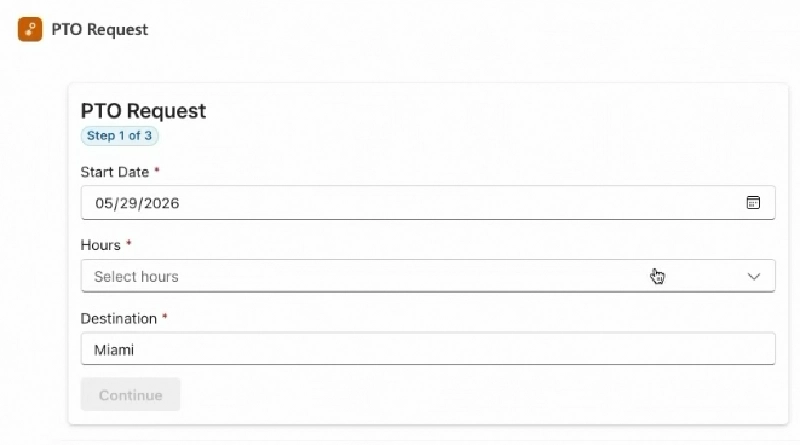
PTO Request Agent's Request Form
MCP App widget collecting & confirming the user’s request
prompt to MCP App widget Agent->>UI: render HTML in `iframe` UI-->>User: display interactive UI note over User,Server: User completes form, UI widget sends message to chat User->>UI: edit/complete form & submit UI-->>Agent: "Here are my PTO request details: 16 hours (2 days)
starting 2026-05-29 to Miami. Please
check the company PTO policy and my balance."
A balance and confirmation widget. After the policy check passes and the agent retrieves the user’s balance from SharePoint via Microsoft Graph(#1-#4), it calls
show-pto-balanceand passes in the data it just fetched (#7). The widget renders the request summary, a policy-verified indicator, the balance breakdown (total, used, available, remaining after this request), and a Submit PTO Request button (#8-#9). And here’s my favorite pattern in this whole architecture: that button is the confirmation gate. The agent’s instructions tell it not to write anything to SharePoint until the button’s confirmation message arrives (#12-13).You’ve moved a destructive-action safeguard out of fragile natural language (“reply yes to confirm”) and into an explicit UI affordance.
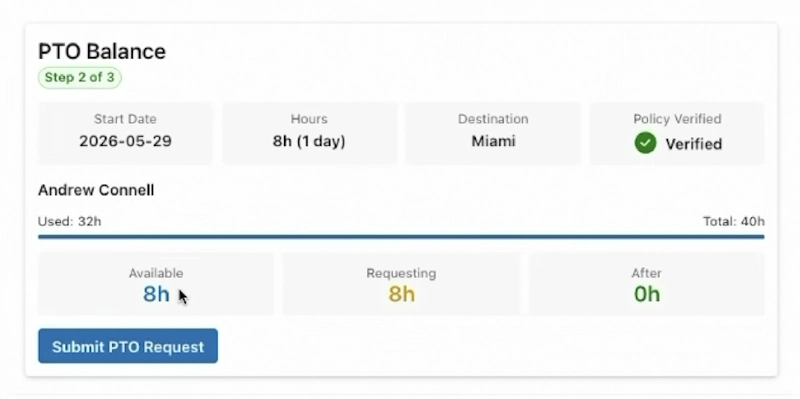
PTO Request Agent's Confirmation Widget
MCP App widget displaying request validity & prompting submission

& policy verification result
to MCP App widget Agent->>UI: render HTML in `iframe` UI-->>User: display interactive UI note over User,UI: User reviews & confirms form, UI widgets sends message to chat User->>UI: review form & submit UI-->>Agent: "I confirm my PTO request. Submit it and update my balance." note over User,UI: Agent updates SharePoint list item Agent->>MSGraph: post update to SharePoint list MSGraph-->>Agent: Success
An itinerary widget. Once the request is submitted, the agent generates the hour-by-hour itinerary and calls
show-itineraryto render it as a visual card with a tab per day, instead of dumping a thousand words of text into the chat.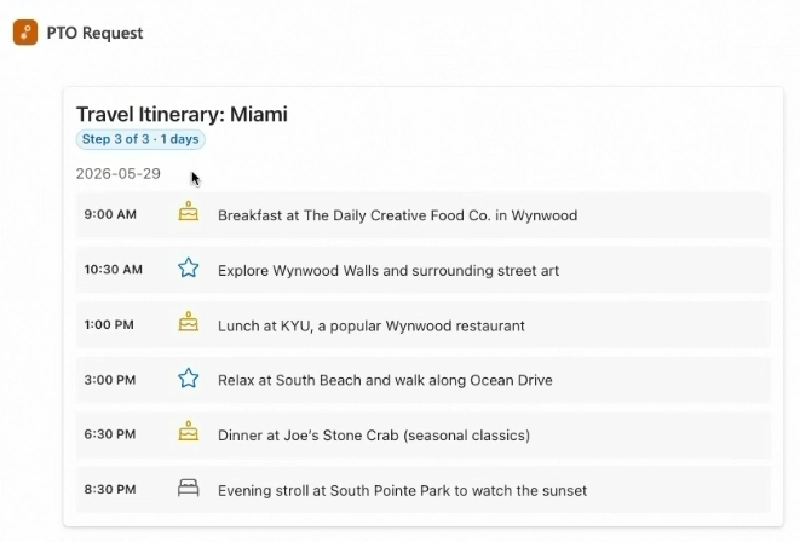
PTO Request Agent's Itinerary Widget
MCP App widget displaying the suggested trip itinerary

Notice what the MCP tools are not doing in this design: they never fetch data. In this scenario, the agent uses Microsoft Graph to handle every data operation through the existing OpenAPI action. The MCP tools are pure visualizers; the agent passes them the data it already collected (from chat like in the PTO request form widget) or retrieved (from a data source, like using Microsoft Graph to get the user’s PTO balance from the SharePoint list), and they hand back a widget to display it. The two runtimes (OpenAPI for data, MCP server for UI) live side by side in the same declarative agent.
I like this separation a lot, because it means adding MCP Apps to an existing agent doesn’t touch your data access, your auth, or your API plumbing at all. It’s also arguably more secure because M365 Copilot is handling the access token acquisition behind the scenes via single sign-on with Entra ID. In other words, the access token never touches the user.
This is just how I implemented this scenario; your MCP Server could fetch data and populate it in the generated HTML response back to the agent if you want. But for the scenario that I’ll detail in this series, I relied on the single sign-on support in M365 Copilot to let Copilot leverage the user’s identity and permissions to get the data it needed using Microsoft Graph so tokens were never exchanged with the remote MCP Server.
What developers are responsible for
Choosing MCP Apps for a declarative agent shifts a lot of work onto you. The Microsoft 365 Agents Toolkit (ATK) project templates don’t scaffold any of it, so you own every piece end to end: building each widget as a self-contained blob of HTML, standing up the MCP server that returns those widgets as resources, and wiring up a build pipeline to compile and host it for local development and testing. On top of that, scenarios that call Microsoft Graph on the user’s behalf—like the PTO request example—add an OpenAPI description (OAD) file, an Entra ID app for single sign-on, and the declarative agent instructions and action manifest that tie everything together. The sections below break down each responsibility.
compile and bundle widgets"] Widgets["Widgets
self-contained HTML"] MCPServer["MCP Server
serves widgets as resources"] EntraApp["Entra ID App
SSO for Microsoft Graph"] OAD["OpenAPI OAD
describes Graph endpoints"] Agent["Declarative Agent
instructions and action manifest"] end BuildPipeline -->|compiles| Widgets Widgets -->|returned by| MCPServer MCPServer -->|wired via action manifest| Agent EntraApp -->|secures| OAD OAD -->|wired via action manifest| Agent class Agent theme-terminal
Widgets
The MCP App UI widgets are returned to the MCP client by the server as the full source of what should be rendered in the iframe. This means you need to create each widget as its own blob of HTML. If you elect to use a web framework such as React, you’ll need to compile the React app down to the entire HTML and JavaScript in one string (likely a file) that will be returned by the MCP server.
MCP Server
To return the widgets to the MCP client (M365 Copilot in this case), you’ll also need to create the MCP Server. This will return a tool for each thing it can do and return the requested resource (aka: widget) when requested.
Build Pipeline
The widgets returned by the MCP server are complete HTML snippets that are hosted by the MCP client (M365 Copilot) using an iframe. This isn’t a reference to the HTML file you host and serve up, it’s the complete HTML & related code necessary to implement the widget.
If you’re writing pure HTML, CSS, and JavaScript in the same file and return the contents from your MCP server, then you can return that. But if you’re using TypeScript, React, or anything else that will need to be compiled, you’ll need to implement some sort of a build toolchain to generate the widgets that the MCP server can return back.
Also, for development and testing, you’ll want to compile and start the MCP server and expose it to the internet via a routable URL that M365 Copilot can call.
In addition to these additional build steps, my PTO Request scenario also requires a Microsoft Entra ID app setup for single sign-on.
None of these things are included in the Microsoft 365 Agents Toolkit (ATK) for VS Code project templates, so you’ll need to implement all of them as the developer.
OpenAPI OAD for Microsoft Graph
In order to call Microsoft Graph, you’ll need two things: an OpenAPI description (OAD) file and an Entra ID app for single sign-on.
You’ll need to create or provide the OpenAPI OAD file describing the Microsoft Graph endpoints the agent will call to get the current user’s PTO balance.
Single Sign-On (SSO) & Entra ID app
You’ll also need to create an Entra ID app that your agent and M365 Copilot will use to obtain an access token so M365 Copilot can submit a request on your behalf to Microsoft Graph.
Agent
The agent is the declarative agent that ties everything together, and when using ATK for VS Code, that’s what you build last. You’re responsible for writing the instructions to coach M365 Copilot through the flow of your agent: how to obtain the different data used in the widgets, which widget to request for specific scenarios, and what data to pass to the widget when it’s rendered.
In addition to the instructions, you’ll need to create the action manifest to wire up the Microsoft Graph OAD file and the MCP server to make your agent aware of them.
Security and the things that will annoy you
Since the widget HTML is handed to Copilot and rendered in a sandboxed iframe, the host stays in control of what runs. If your widget needs to call external endpoints or load remote images, those domains have to be declared in the app manifest’s valid domains list, which means admins see exactly what your agent talks to before they approve it. That’s the standard Teams app security model applied to widgets, and it’s reasonable.
Copilot currently asks the user to confirm every call out to your MCP server, and there’s no “always allow” option the way there is in Claude. The MCP spec supports annotations that signal a tool is read-only and safe, and Microsoft has said they’re looking at honoring them, but as of June 2026 your users will be clicking Allow more than anyone would like. That’s a rollout decision by Microsoft, not a protocol limitation, and I sure hope they soften that annoying stance in the future. My other standing complaint applies here too: observability into the full agent pipeline is thin. The developer mode debug panel shows you which tools were called with what arguments and latency, which is genuinely useful when wiring up widgets, but that’s the extent of it.
Key takeaways
- MCP Apps let a declarative agent render real, interactive UI inline in M365 Copilot chat. The MCP server returns self-contained widget HTML that Copilot renders in a sandboxed
iframe, either inline or side-by-side. - It’s an additive extension to a standard MCP server. Tools point at a
ui://resource URI through_meta, resources serve the widget HTML, and a text fallback keeps non-supporting hosts working. - Data flows both ways. Tool results carry
structuredContentinto the widget, and the widget sends authored chat messages back to the agent, which enables patterns like UI-gated confirmation of write operations. - Build on the MCP Apps spec, not the OpenAI Apps SDK, even though Copilot supports both. The MCP Apps extension is the vendor-neutral standard, and the same server works in Copilot, Claude, and ChatGPT.
- Adaptive cards still have a place. They’re the no-code option for simple cards; MCP Apps are the high-fidelity option that costs you an MCP server.
Want to build one?
The rest of this multi-part series walks through adding MCP Apps to an existing declarative agent step by step, using the PTO request scenario above:
- What are MCP Apps? Interactive Widgets in Copilot Chat (this article)
- Add an MCP server with UI widgets to a Microsoft 365 Copilot declarative agent project
- Integrate an MCP Apps server into a M365 Copilot declarative agent
- Wire an MCP Apps server into the F5 debug experience of the M365 Agents Toolkit
What do you think? Does inline UI change what you’d consider building as a declarative agent, or are adaptive cards still enough for your scenarios?
I’d love to hear what you’d put in a widget first.
Download Article Resources
Want the resources for this article? Enter your email and we'll send you the download link.
Microsoft MVP, Full-Stack Developer & Chief Course Artisan - Voitanos LLC.
Andrew Connell is a full stack developer who focuses on Microsoft Azure & Microsoft 365. He’s a 22-year recipient of Microsoft’s MVP award and has helped thousands of developers through the various courses he’s authored & taught. Whether it’s an introduction to the entire ecosystem, or a deep dive into a specific software, his resources, tools, and support help web developers become experts in the Microsoft 365 ecosystem, so they can become irreplaceable in their organization.