To add interactive UI widgets to a Microsoft 365 Copilot declarative agent, you add a Node.js MCP server to the agent project, build each widget as a React app compiled to a single self-contained HTML file, and register each widget as a tool plus resource pair using the @modelcontextprotocol/ext-apps package.
MCP Apps is an extension to the Model Context Protocol that lets an MCP server return interactive HTML widgets a host like Copilot renders inline, instead of replying with plain text.
This article walks you through exactly that, step-by-step, in the same VS Code project that already contains the declarative agent. By the end you’ll have a Node.js MCP Apps server on localhost:3001, a PTO request form widget compiled to a single HTML file, and tool plus resource registrations verified in the MCP Inspector. The complete working sample, including all three widgets, is available as a download at the end of the series.
Series: Create Interactive UIs for Microsoft 365 Copilot Agents With MCP Apps
This is the second part of a multi-part series on adding MCP Apps to a declarative agent for Microsoft 365 Copilot (Copilot). If you’re not sure what MCP Apps are yet, you can get an overview in the first part of the series.
The articles in this series include:
- What are MCP Apps? Interactive Widgets in Copilot Chat
- Add an MCP server with UI widgets to a Microsoft 365 Copilot declarative agent project (this article)
- Integrate an MCP Apps server into a M365 Copilot declarative agent
- Wire an MCP Apps server into the F5 debug experience of the M365 Agents Toolkit
Starting point: the declarative agent project
The starting point is an existing declarative agent project created with the Microsoft 365 Agents Toolkit (ATK) in VS Code. The agent handles employee PTO requests: it checks requests against a company PTO policy stored as embedded knowledge, and it reads and writes the employee’s PTO balance in a SharePoint list through an OpenAPI action that calls Microsoft Graph with single sign-on. None of that changes in this series. The Microsoft Graph plugin keeps handling every data operation; the MCP server we’re adding is purely a visualization layer.
One architectural note before we write any code, because it trips people up: we’re adding the MCP server to the same VS Code project for convenience, but it’s logically a separate application. It’s a Node.js web server. In production you’d deploy it on its own (an Azure Web App, a container, an Azure Function, whatever fits your environment), completely independent of the declarative agent package. During local development we’ll run it on localhost:3001 and expose it to Copilot through a dev tunnel in
part 4 of this series.
Before you start, make sure you have:
- an existing declarative agent project created with the Microsoft 365 Agents Toolkit in VS Code;
- Node.js installed (the project targets an active LTS release); and
npmavailable on yourPATH(it ships with Node.js).
Here’s what we’ll have added to the project by the end of this article:
./
├── package.json              # MCP server + widget dependencies
├── tsconfig.json             # TypeScript config (server code only)
├── src/
│   ├── build-widgets.ts      # compiles each widget to a single HTML file
│   ├── server/
│   │   ├── index.ts          # Express app + streamable HTTP MCP endpoint
│   │   └── mcp-server.ts     # MCP server: tools + widget resources
│   └── widgets/
│       ├── tsconfig.json     # TypeScript config for widgets (Vite)
│       ├── hooks/
│       │   └── useMcpApp.tsx # shared React hooks for the MCP Apps SDK
│       └── pto-request/
│           ├── index.html    # widget HTML shell
│           └── main.tsx      # widget React component
└── dist/
    └── assets/               # compiled single-file widgets (generated)
Create the Node.js project foundation
Let’s start by adding a package.json to the root of the project with everything the MCP server and the widgets need:
{
  "name": "pto-request",
  "version": "1.0.0",
  "description": "MCP server with interactive UI widgets for the PTO Request declarative agent",
  "private": true,
  "type": "module",
  "scripts": {
    "build": "npm run build:widgets && npm run build:server",
    "build:widgets": "tsx src/build-widgets.ts",
    "build:server": "tsc -p tsconfig.json",
    "start": "npm run build && node dist/index.js",
    "start:dev": "npm run build:widgets && tsx watch src/server/index.ts",
    "inspector": "npx @modelcontextprotocol/inspector"
  },
  "dependencies": {
    "@fluentui/react-components": "9.56.0",
    "@fluentui/react-icons": "2.0.324",
    "@modelcontextprotocol/ext-apps": "1.0.0",
    "@modelcontextprotocol/sdk": "1.24.0",
    "cors": "2.8.5",
    "express": "4.21.2",
    "react": "18.3.1",
    "react-dom": "18.3.1",
    "zod": "4.3.6"
  },
  "devDependencies": {
    "@types/cors": "2.8.17",
    "@types/express": "5.0.0",
    "@types/node": "22.10.0",
    "@types/react": "18.3.0",
    "@types/react-dom": "18.3.0",
    "@vitejs/plugin-react": "4.3.4",
    "tsx": "4.19.0",
    "typescript": "5.7.3",
    "vite": "6.0.0",
    "vite-plugin-singlefile": "2.1.0"
  }
}
MCP App-specific dependencies
Three dependencies deserve a callout, because they’re what make this an MCP Apps server and not just an MCP server. The headline one is @modelcontextprotocol/ext-apps: it’s the single package that turns a plain MCP server into an MCP Apps server.
| Package | Role | Why it’s required |
|---|---|---|
@modelcontextprotocol/sdk | The official MCP SDK from Anthropic, steward of the Model Context Protocol spec. | Provides the McpServer class, transport types, and core protocol primitives. Everything else builds on it. |
@modelcontextprotocol/ext-apps | Companion package that adds MCP Apps (widget) support on top of the base SDK. | Exposes registerAppTool() and registerAppResource(), the two functions that attach interactive UI widgets to tool calls. Without it you can build standard MCP tools but can’t serve widgets — this one package is the difference between a plain MCP server and an MCP Apps server. |
vite-plugin-singlefile | Vite plugin that inlines all JavaScript and CSS into a single HTML file. | Copilot hosts widgets in a sandboxed iframe and requests them by URI; there’s no file system to serve secondary assets from, so each widget must compile to one self-contained file your server can read and return whole. |
Next, add a tsconfig.json at the project root (./tsconfig.json). Pay attention to the scoping: this config compiles only the server code. The widgets get their own separate TypeScript config later because they’re compiled by Vite, not tsc. Two toolchains, two configs.
{
  "compilerOptions": {
    "target": "ES2022",
    "module": "NodeNext",
    "moduleResolution": "NodeNext",
    "outDir": "./dist",
    "rootDir": "./src/server",
    "strict": true,
    "esModuleInterop": true,
    "skipLibCheck": true,
    "forceConsistentCasingInFileNames": true,
    "resolveJsonModule": true,
    "declaration": false,
    "sourceMap": true
  },
  "include": ["src/server/**/*"],
  "exclude": ["node_modules", "dist", "assets", "src/widgets", "src/build-widgets.ts"]
}
Now install everything:
npm install
Create the Express server entry point
The MCP server runs as an Express application. Create ./src/server/index.ts:
import express from "express";
import cors from "cors";
import { StreamableHTTPServerTransport } from "@modelcontextprotocol/sdk/server/streamableHttp.js";
import { createMcpServer } from "./mcp-server.js";

const PORT = parseInt(process.env.PORT ?? "3001", 10);

const app = express();

app.use(cors({ origin: "*" }));
app.use(express.json({ limit: "4mb" }));

// ── Health check ───────────────────────────────────────────────────────
app.get("/", (_req, res) => {
  res.json({ name: "pto-request-mcp", status: "ok" });
});

// ── MCP endpoint — Streamable HTTP (stateless) ────────────────────────
app.all("/mcp", async (req, res) => {
  try {
    const server = createMcpServer();
    const transport = new StreamableHTTPServerTransport({
      sessionIdGenerator: undefined,
      enableJsonResponse: true,
    });
    await server.connect(transport);
    await transport.handleRequest(req, res, req.body);
  } catch (err) {
    console.error("MCP error:", err);
    if (!res.headersSent) {
      res.status(500).json({ error: "Internal server error" });
    }
  }
});

app.listen(PORT, () => {
  console.log(`PTO Request MCP server running at http://localhost:${PORT}`);
  console.log(`  MCP endpoint: http://localhost:${PORT}/mcp`);
});
A few things worth understanding here rather than just copying:
- The health check at
GET /returns a tiny JSON status object. Once the server is up, you can hit the root URL in a browser to confirm it’s alive before you bother connecting anything to it. - The MCP endpoint at
/mcpusesapp.all()because the MCP Streamable HTTP transport uses multiple HTTP verbs against the same route. We’re usingStreamableHTTPServerTransport, which streams results back over plain HTTP, as opposed to the stdio transport you’d use for a CLI-launched local MCP server. Copilot is a remote client, so you need to make this a streamable HTTP server. - It’s stateless. Setting
sessionIdGenerator: undefinedputs the transport in stateless mode: every request creates a freshMcpServerinstance viacreateMcpServer(), handles the request, and throws it away. No session state lives between calls, which keeps the server trivially scalable and means there’s nothing to corrupt between requests. - The 4 MB JSON limit matches the 4 MB payload ceiling Copilot imposes on widget responses; size each compiled widget to stay under that constraint.
Create the MCP server module
The createMcpServer() function that index.ts calls on every request lives in ./src/server/mcp-server.ts. Let’s build it in layers. First, the imports and the widget-loading utility:
import { McpServer } from "@modelcontextprotocol/sdk/server/mcp.js";
import type {
  CallToolResult,
  ReadResourceResult,
} from "@modelcontextprotocol/sdk/types.js";
import {
  registerAppTool,
  registerAppResource,
  RESOURCE_MIME_TYPE,
} from "@modelcontextprotocol/ext-apps/server";
import { z } from "zod";
import fs from "node:fs/promises";
import path from "node:path";
import { fileURLToPath } from "node:url";

const __filename = fileURLToPath(import.meta.url);
const __dirname = path.dirname(__filename);

// Widgets always build to ./dist/assets/. In prod (node dist/*.js) this file
// sits next to that directory; in dev (tsx src/server/*.ts) it does not.
const isCompiled = __filename.endsWith(".js");
const ASSETS_DIR = isCompiled
  ? path.resolve(__dirname, "assets")
  : path.resolve(__dirname, "..", "..", "dist", "assets");

async function readWidgetHtml(name: string): Promise<string> {
  const filePath = path.join(ASSETS_DIR, `${name}.html`);
  try {
    return await fs.readFile(filePath, "utf-8");
  } catch {
    console.warn(`Widget not found: ${filePath}`);
    return `<html><body><p>Widget "${name}" not found at: "${filePath}". Run: 'npm run build:widgets'</p></body></html>`;
  }
}
The interesting bit is the isCompiled check. In production we run compiled JavaScript (node dist/index.js), so this file lives inside ./dist/ right next to the assets folder where the compiled widgets land. In development we run the TypeScript source directly with tsx, so the file lives in ./src/server/ and we have to walk up to find ./dist/assets/.
What's `Tsx`?
TSX is a CLI that compiles TypeScript on the fly, runs it under Node.js, and watches for changes, restarting automatically. It replaces the old tsc plus nodemon two-tool dance with one utility, and it’s what makes the dev loop in part 4 of this series a better experience.
readWidgetHtml() is the function that embodies the core MCP Apps idea: it reads the entire contents of a compiled widget HTML file (HTML, JavaScript, and CSS, all inlined) and returns it as one giant string. We never hand Copilot a URL to a file on our web server; we hand it the source, and Copilot renders it in its own iframe.
Now add the widget URIs and the server factory:
// define the URI's of our widgets
const PTO_REQUEST_URI = "ui://pto-request/pto-request.html";

export function createMcpServer(): McpServer {
  const server = new McpServer({
    name: "pto-request-mcp",
    version: "1.0.0",
  });

  // ── Widget resources ─────────────────────────────────────────────────
  // (added later in this article)

  // ── Tools ────────────────────────────────────────────────────────────
  // (added later in this article)

  return server;
}
What’s the ui:// URI?
A ui:// URI is the address an MCP Apps server uses to identify a widget resource, written in the format ui://{server-namespace}/{widget-id}. The server namespace (pto-request) groups every widget this MCP server exposes under one logical prefix. The widget identifier (pto-request.html) matches the compiled output file name our build script will generate. When the agent’s tool result references this URI, Copilot turns around and requests this exact resource from the server, so the tool registration and the resource registration must agree on it exactly. Defining it once as a constant means they can’t drift apart.
Create the shared MCP App React hooks
Every widget needs to connect to the MCP Apps runtime in the host, receive the data the tool passed it, and react to theme changes. Rather than repeating that plumbing in every widget, we put it in one shared module that every widget imports: ./src/widgets/hooks/useMcpApp.tsx. It follows the same provider pattern Fluent UI uses for theming: wrap the widget tree in a provider, and any child component pulls out exactly what it needs through a hook.
The file defines a React context carrying four things (the connected app instance, the toolData from the most recent tool result, the current theme, and the full host context), an McpAppProvider component that wires up the @modelcontextprotocol/ext-apps lifecycle, and three hooks. I won’t reproduce all 112 lines here since most of it is standard React context plumbing (it’s in the download), but here’s the part that matters, the hooks your widgets actually consume:
/** Full context (app, toolData, theme, hostContext) */
export function useMcpApp() {
  return useContext(McpAppContext);
}

/** Returns the structured tool data cast to T */
export function useMcpToolData<T>(): T | null {
  const { toolData } = useContext(McpAppContext);
  return (toolData as T) ?? null;
}

/** Returns the current theme ("light" | "dark") */
export function useMcpTheme(): "light" | "dark" {
  const { theme } = useContext(McpAppContext);
  return theme;
}
useMcpToolData<T>() is the key one. When the agent invokes a tool, the tool result includes a structuredContent object. The provider catches that object through the SDK’s ontoolresult handler and exposes it here. This is how Copilot passes data into your widget: the form widget reads its pre-fill values through this hook.
useMcpTheme() reports whether Copilot is in light or dark mode so the widget can match the host chrome, and useMcpApp() hands you the full app reference, which we’ll need to send messages back to the chat.
Create the PTO request form widget
Each widget is its own folder under ./src/widgets/ containing an HTML shell and a React component. The shell, ./src/widgets/pto-request/index.html, is deliberately boring:
<!DOCTYPE html>
<html lang="en">
<head>
  <meta charset="UTF-8" />
  <meta name="viewport" content="width=device-width, initial-scale=1.0" />
  <title>PTO Request Summary</title>
  <style>
    html, body { margin: 0; padding: 0; }
  </style>
</head>
<body>
  <div id="root"></div>
  <script type="module" src="./main.tsx"></script>
</body>
</html>
That’s it: a root div and a module script reference. When we build, Vite compiles main.tsx and inlines the result into this file, producing one self-contained HTML document.
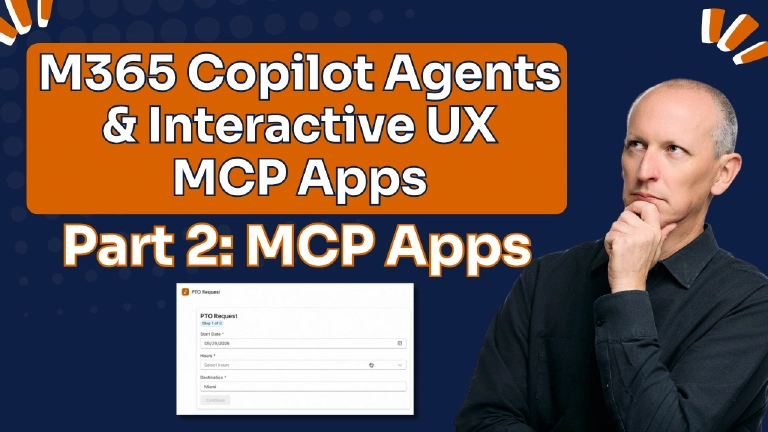
The component, ./src/widgets/pto-request/main.tsx, is over 200 lines… almost none of it has anything to do with MCP Apps. It’s a classic React component using Fluent UI v9 controls (a date Input, an hours Dropdown, a destination Input, and a continue Button that stays disabled until the form validates). I’m just going to stick to the MCP-specific parts in this article.
Describe the shape of the input arguments
First, the interface describing the data the tool passes in. These properties match exactly what the server tool will return as structuredContent:
interface PTORequestData {
  type: "pto-request";
  employeeName: string;
  startDate: string;
  hours: number;
  location: string;
}
Custom React hooks to handle MCP App communication
Second, the component pulls in the three hooks, and a useEffect seeds the form fields from the tool data once it arrives. If the user already told the agent “Miami, starting May 9th,” those fields render pre-filled and the user only supplies what’s missing:
function RequestForm() {
  const initial = useMcpToolData<PTORequestData>();
  const { app } = useMcpApp();
  const theme = useMcpTheme();
  // ...form state...

  useEffect(() => {
    if (!initial || seeded) return;
    const seededDate = initial.startDate?.trim() ?? "";
    if (seededDate && seededDate >= today) setStartDate(seededDate);
    if (HOUR_OPTIONS.some((o) => o.hours === initial.hours)) {
      setHours(initial.hours);
    }
    if (initial.location) setLocation(initial.location);
    setSeeded(true);
  }, [initial, seeded, today]);
  // ...
}
How the widget sends data back to Copilot
Third, and this is the key MCP Apps communication pattern in the whole series: the submit handler. How does form data get back to Copilot? The widget composes a natural language chat message and sends it into the conversation as the user:
async function handleSubmit() {
  if (!app || !isValid || hours === null) return;
  setSubmitting(true);
  try {
    const days = hours / 8;
    const dayLabel = `${days} day${days === 1 ? "" : "s"}`;
    const text = `Here are my PTO request details: ${hours} hours (${dayLabel}) starting ${startDate} to ${location.trim()}. Please check the company PTO policy and my balance.`;
    await app.sendMessage({
      role: "user",
      content: [{ type: "text", text }],
    });
    setSubmitted(true);
  } catch (err) {
    console.error("Failed to send form submission:", err);
  } finally {
    setSubmitting(false);
  }
}
You control that string completely, so it’s effectively your own instruction sent back to your own agent: precise, consistently formatted, and trivial for the agent to extract values from. Compare that with hoping a user types a confirmation the agent can parse. In part 3 of this series, the agent’s instructions will explicitly reference this message format.
Finally, the bottom of the file is standard React bootstrap, with the provider as the only MCP-specific addition:
function App() {
  return (
    <McpAppProvider name="PTO Request Form">
      <RequestForm />
    </McpAppProvider>
  );
}

createRoot(document.getElementById("root")!).render(<App />);
Add the widget build infrastructure
Now we need the process that turns index.html plus main.tsx into that single self-contained HTML file.
Set up TypeScript build configuration
First, the widgets get their own ./src/widgets/tsconfig.json, because they’re built by Vite with the React JSX transform and bundler-style module resolution, settings that would be wrong for the Node.js server code:
{
  "extends": "../../tsconfig.json",
  "compilerOptions": {
    "module": "ESNext",
    "moduleResolution": "bundler",
    "jsx": "react-jsx",
    "rootDir": ".",
    "noEmit": true,
    "types": ["node", "react", "react-dom"]
  },
  "include": ["**/*"],
  "exclude": ["node_modules"]
}
Create a build script
Now add the build script, ./src/build-widgets.ts, which uses Vite programmatically. It enumerates every subfolder of src/widgets/ that contains an index.html, runs a Vite build for each with vite-plugin-singlefile, and renames the output to {widget-name}.html in dist/assets/:
import { build } from "vite";
import react from "@vitejs/plugin-react";
import { viteSingleFile } from "vite-plugin-singlefile";
import path from "node:path";
import fs from "node:fs";
import { fileURLToPath } from "node:url";

const __filename = fileURLToPath(import.meta.url);
const __dirname = path.dirname(__filename);

const WIDGETS_DIR = path.join(__dirname, "widgets");
const ASSETS_DIR = path.join(__dirname, "..", "dist", "assets");

const widgetDirs = fs
  .readdirSync(WIDGETS_DIR, { withFileTypes: true })
  .filter((d) =>
    d.isDirectory() &&
    fs.existsSync(path.join(WIDGETS_DIR, d.name, "index.html"))
  )
  .map((d) => d.name);

console.log(`Building ${widgetDirs.length} widgets: ${widgetDirs.join(", ")}`);

if (!fs.existsSync(ASSETS_DIR)) fs.mkdirSync(ASSETS_DIR, { recursive: true });

for (const widget of widgetDirs) {
  console.log(`  Building ${widget}...`);
  await build({
    root: path.join(WIDGETS_DIR, widget),
    plugins: [react(), viteSingleFile()],
    build: {
      outDir: ASSETS_DIR,
      emptyOutDir: false,
      rollupOptions: {
        output: { entryFileNames: `${widget}.js` },
      },
    },
    logLevel: "warn",
  });

  const srcHtml = path.join(ASSETS_DIR, "index.html");
  const destHtml = path.join(ASSETS_DIR, `${widget}.html`);
  if (fs.existsSync(srcHtml)) {
    fs.renameSync(srcHtml, destHtml);
  }
}

console.log("All widgets built to dist/assets/");
Notice it’s convention-driven: drop a new folder with an index.html into ./src/widgets/ and it gets built automatically, no registration needed.
Test the build
Let’s run it:
npm run build:widgets
Open ./dist/assets/pto-request.html after the build and you’ll see the payoff: one HTML file with the entire React app, all the JavaScript, inlined into it. That file’s contents are exactly what gets sent over the wire to Copilot.
You should have a ./dist/assets/pto-request.html file that opens in a text editor as one large self-contained HTML document. If ./dist is missing, check that your widget folder contains an index.html, since that’s what the build script keys on.
Register the tool and the resource
Registering a widget takes two calls that reference the same ui:// constant: registerAppTool() declares the tool and its widget URI, and registerAppResource() serves the compiled HTML at that URI.
We’ve got a server, a widget, and a build. The last coding step is teaching the MCP server about them, and this is a two-part registration inside createMcpServer():
- a tool the agent can call, and
- a resource that serves the widget HTML when Copilot asks for it
Register the tool
First the tool, using registerAppTool() from the ext-apps package:
registerAppTool(
  server,
  "collect-pto-request",
  {
    title: "Collect PTO Request",
    description: "Open an interactive PTO request form widget prefilled with any details you've inferred (employee name, start date, hours, location). The user reviews/edits/submits; submitted values arrive as a new user chat message. CALL THIS FIRST after greeting the user. All inputs are optional — pass whatever you know; leave unknowns blank.",
    inputSchema: {
      employeeName: z.string().optional().describe("The employee's display name, if known."),
      startDate: z.string().optional().describe("Inferred PTO start date in YYYY-MM-DD format, if known."),
      hours: z.number().optional().describe("Inferred number of PTO hours requested, if known. Expected increments of 4 (half-day) up to 40 (5 days)."),
      location: z.string().optional().describe("Inferred vacation destination, if known."),
    },
    annotations: { readOnlyHint: true },
    _meta: { ui: { resourceUri: PTO_REQUEST_URI } },
  },
  async ({ employeeName, startDate, hours, location }): Promise<CallToolResult> => ({
    content: [{
      type: "text",
      text: "PTO request form displayed. Wait for the user to submit the form (arrives as a new user chat message).",
    }],
    structuredContent: {
      type: "pto-request",
      employeeName: employeeName ?? "",
      startDate: startDate ?? "",
      hours: hours ?? 0,
      location: location ?? "",
    },
  })
);
Let’s unpack that snippet as there’s a lot there:
- The tool name
collect-pto-requestis the string that the plugin manifest (part 3) and the agent’s instructions will reference. They must match exactly, everywhere. - Every input is optional, and that’s intentional. The agent calls this tool immediately after greeting the user, passing only whatever it extracted from the opening message. Said “long weekend in Miami” but no date? Fine; the form collects the rest. The agent never needs to ask clarifying questions in chat, because partial data, even empty data, is fine.
_meta: { ui: { resourceUri: ... } }is the key MCP Apps property. When Copilot receives this tool’s result and finds a_metaresource URI, it fetches the resource at that URI and renders it instead of showing plain text. No_meta, no widget.- The callback returns two things. The
contenttext is the fallback for hosts that don’t support MCP Apps (and a hint to the model about what just happened). ThestructuredContentobject is the data payload delivered into the widget, the exact object ouruseMcpToolData<PTORequestData>()hook receives. MCP Apps tools are pure visualizers: they echo their inputs back asstructuredContentand perform no data operations. Notice this tool doesn’t do anything — no data fetch, no business logic — it just echoes its inputs back as structured content.
Register the widget resource
Then the resource, using registerAppResource(). This is what answers when Copilot says “give me the widget at that URI”:
registerAppResource(
  server, "PTO Request Widget", PTO_REQUEST_URI,
  { mimeType: RESOURCE_MIME_TYPE, description: "PTO request form widget" },
  async (): Promise<ReadResourceResult> => ({
    contents: [{ uri: PTO_REQUEST_URI, mimeType: RESOURCE_MIME_TYPE,
      text: await readWidgetHtml("pto-request") }],
  })
);
The text property carries the entire compiled HTML file, courtesy of the readWidgetHtml() helper we wrote earlier. Tool and resource share the same PTO_REQUEST_URI constant, so the contract between them can’t drift. That’s the complete two-phase MCP Apps pattern: the tool result says “I have a widget at this URI, and here’s the data to initialize it with,” and the resource serves that widget when asked.
Test the MCP server with the MCP Inspector
Before involving Copilot at all, let’s prove the server works on its own. Start it in dev mode:
npm run start:dev
That runs build:widgets and then starts the Express server under tsx watch on http://localhost:3001, with hot reload on any source change. In a second terminal, launch the official MCP debugging tool, the MCP Inspector:
npm run inspector
The MCP Inspector opens in your browser. Set the transport type to Streamable HTTP, enter http://localhost:3001/mcp as the URL, and select Connect. Then verify two things:
Tools tab → List Tools. You should see
collect-pto-requestwith its description, the four optional input fields, and the_metawidget reference. This is exactly the catalog Copilot will discover.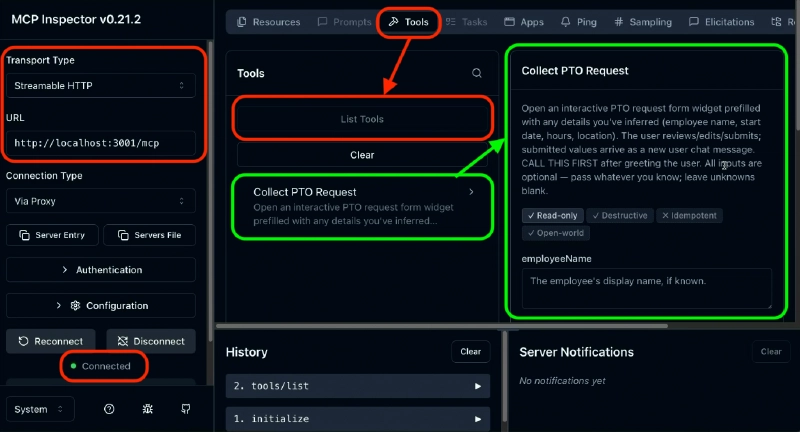
Use the MCP Inspector to view tools
Resources tab → List Resources. You should see PTO Request Widget. Select it and confirm the
textproperty contains the full compiled HTML, the same content you saw in ./dist/assets/pto-request.html.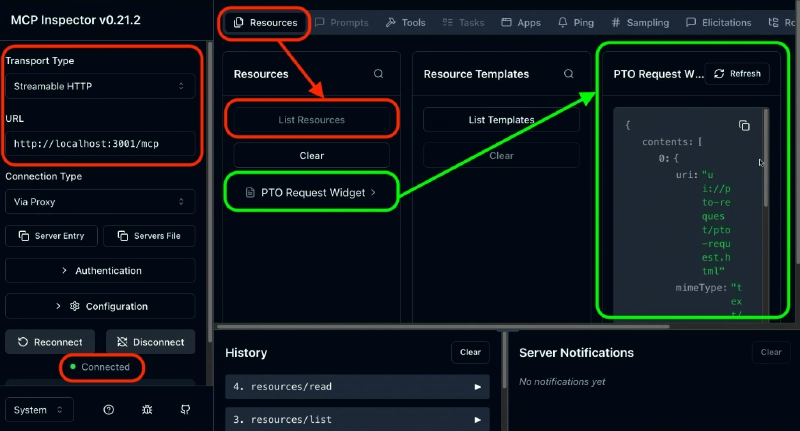
Use the MCP Inspector to view resources


If both of those check out, your MCP Apps server is working end to end: it advertises a tool, the tool points at a widget resource, and the server serves the widget HTML on request. Disconnect the Inspector and stop both processes.
Add the remaining widgets
The full PTO request scenario uses three widgets: the request form we just built, a PTO balance card with a Submit PTO Request confirmation button, and a travel itinerary card with a tab per day. I’m not going to walk through the other two here, and that’s the point: they follow the identical pattern. Each one is a folder under ./src/widgets/ with an index.html shell and a React component, a URI constant, a registerAppTool() call with its input schema, and a registerAppResource() call that serves its HTML. The build script picks new widget folders up automatically. The only differences are the React markup and the schemas (the balance tool takes required fields like totalPTO, usedPTO, and policyStatus; the itinerary tool takes a nested days array). Once you’ve built one widget, you’ve built them all, and all three are in the sample download. After adding them, rerun the Inspector and confirm you see three tools and three resources.
Key takeaways
- An MCP Apps server is a standard MCP server plus the
@modelcontextprotocol/ext-appspackage, which contributesregisterAppTool()andregisterAppResource(). - Each widget is a tool + resource pair joined by a
ui://URI. The tool’s_meta.ui.resourceUritells Copilot a widget exists; the resource serves the widget’s complete HTML contents, not a URL. - Copilot renders each widget in a sandboxed iframe and can’t fetch secondary assets, so every widget must compile to a single self-contained HTML file via Vite and
vite-plugin-singlefile. - Tools are pure visualizers. They echo their inputs back as
structuredContent; the widget reads that data withuseMcpToolData<T>()and talks back to the agent withapp.sendMessage(), posing as a user chat message you fully control. - Test with the MCP Inspector before touching Copilot. If the Inspector shows your tools and your resources return HTML, the server side is done.
At this point the MCP server is complete and verified, but Copilot has no idea it exists. In part 3 of this Voitanos series, we wire the server into the declarative agent so Copilot can discover and render the widgets. If you want the guided, end-to-end path to building declarative agents like this one, that’s exactly what the Voitanos workshop on building Microsoft 365 Copilot declarative agents covers.
Series: Create Interactive UIs for Microsoft 365 Copilot Agents With MCP Apps
This is the second part of a multi-part series on adding MCP Apps to a declarative agent for Microsoft 365 Copilot (Copilot). In part 3, we’ll create the MCP App plugin manifest, attach it to the declarative agent, and update the agent’s instructions to use the widgets.
The articles in this series include:
- What are MCP Apps? Interactive Widgets in Copilot Chat
- Add an MCP server with UI widgets to a Microsoft 365 Copilot declarative agent project (this article)
- Integrate an MCP Apps server into a M365 Copilot declarative agent
- Wire an MCP Apps server into the F5 debug experience of the M365 Agents Toolkit
Download Article Resources
Want the resources for this article? Enter your email and we'll send you the download link.
Microsoft MVP, Full-Stack Developer & Chief Course Artisan - Voitanos LLC.
Andrew Connell is a full stack developer who focuses on Microsoft Azure & Microsoft 365. He’s a 22-year recipient of Microsoft’s MVP award and has helped thousands of developers through the various courses he’s authored & taught. Whether it’s an introduction to the entire ecosystem, or a deep dive into a specific software, his resources, tools, and support help web developers become experts in the Microsoft 365 ecosystem, so they can become irreplaceable in their organization.