To connect an MCP Apps server, a Model Context Protocol server that returns interactive HTML widgets, to a Microsoft 365 Copilot declarative agent, you do three things: create a plugin manifest that declares a RemoteMCPServer runtime and statically describes each tool, register that manifest in the agent’s actions array, and update the agent’s instructions to call the widget tools at the right moments.
None of it touches the MCP server code; this is all declarative wiring on the agent side.
Series: Create Interactive UIs for Microsoft 365 Copilot Agents With MCP Apps
This is the third part of a multi-part series on adding MCP Apps to a declarative agent for Microsoft 365 Copilot (Copilot). If you’re not sure what MCP Apps are yet, you can get an overview in the first part of the series.
The articles in this series include:
- What are MCP Apps? Interactive Widgets in Copilot Chat
- Add an MCP server with UI widgets to a Microsoft 365 Copilot declarative agent project
- Integrate an MCP Apps server into a M365 Copilot declarative agent (this article)
- Wire an MCP Apps server into the F5 debug experience of the M365 Agents Toolkit
A quick reminder of the scenario: a PTO request agent that already uses an OpenAPI action to call Microsoft Graph (reading and writing a PTO balance in a SharePoint list with single sign-on) and embedded knowledge for the company PTO policy. The MCP server from part 2 exposes three visualization tools:
collect-pto-request(a form widget)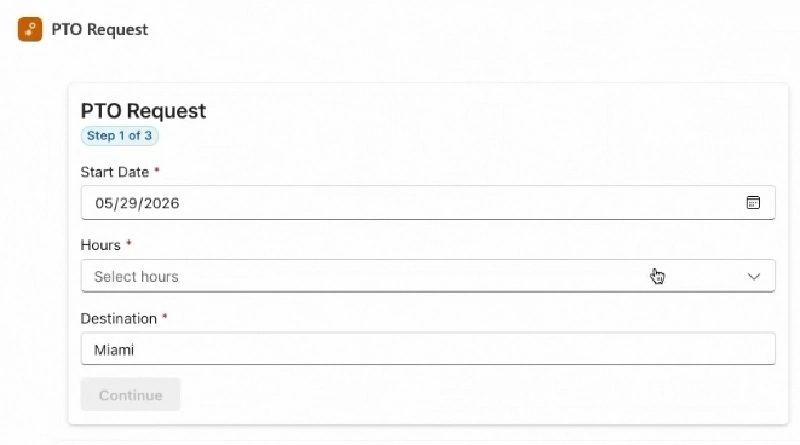
PTO Request Agent's Confirmation Form
MCP App widget collecting & confirming the user’s request
show-pto-balance(a balance card with a submit button)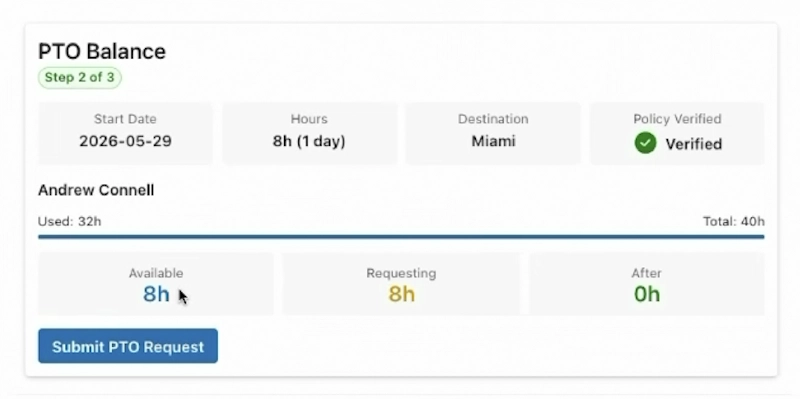
PTO Request Agent's Confirmation Widget
MCP App widget displaying request validity & prompt to submit
show-itinerary(a day-by-day itinerary card)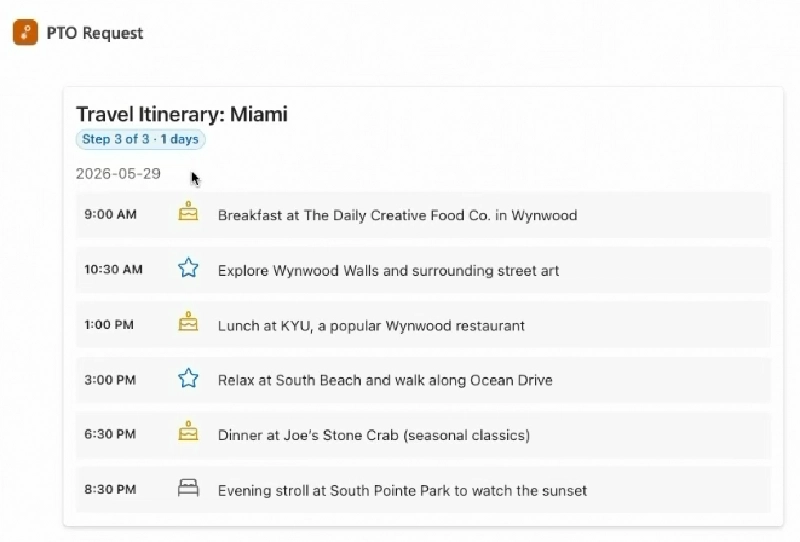
PTO Request Agent's Itinerary Widget
MCP App widget displaying the suggested trip itinerary


Create the MCP App plugin manifest
A declarative agent learns about capabilities through plugin manifests, the same mechanism used for OpenAPI actions. We’re going to create a second, separate manifest for the MCP server rather than cramming it into the existing Microsoft Graph plugin. You technically could combine them, but in my opinion that just gets messy; one manifest per concern keeps each file readable and lets you evolve them independently.
Create ./appPackage/mcpapp-plugin.json and start with the base metadata:
{
  "$schema": "https://developer.microsoft.com/json-schemas/copilot/plugin/v2.4/schema.json",
  "schema_version": "v2.4",
  "name_for_human": "PTO Request Widgets",
  "description_for_human": "Interactive visual widgets for each step of the PTO request process",
  "description_for_model": "MCP server tools that render interactive visual widgets for the PTO request flow",
  "contact_email": "andrew@voitanos.io",
  "namespace": "ptorequestwidgets",
  "capabilities": {},
  "functions": [],
  "runtimes": []
}
Note the schema version: v2.4 is the plugin schema version that introduces MCP server support, so don’t copy an older v2.x value from an existing OpenAPI plugin manifest. The name_for_human is what users see when Copilot asks permission to contact the server, so make it something a non-developer recognizes (this is why mine says “PTO Request Widgets” rather than anything with MCP in the name).
Declare each MCP tool as a function
Next, fill in the functions array with one entry per MCP tool. These map one-to-one, by name, to the tools we registered on the server in part 2:
"functions": [
  {
    "name": "collect-pto-request",
    "description": "Opens an interactive PTO request form prefilled with any details Copilot has inferred. The user edits/validates and submits; the submission arrives as a new user chat message."
  },
  {
    "name": "show-pto-balance",
    "description": "Displays the PTO balance card with summary header, policy-verified icon, and a Submit PTO Request gate button. The user must click Submit (which sends a confirmation chat message) before updating PTO data."
  },
  {
    "name": "show-itinerary",
    "description": "Displays a rich visual travel itinerary for the vacation destination"
  }
]
If you’ve written OpenAPI plugin manifests before, notice what’s missing: no response semantics, no adaptive card templates for rendering previews. We don’t need any of that because the widget is the rendering. A name and a description is all a function needs here, since the description is what Copilot’s orchestrator uses when deciding whether a tool is relevant to the conversation.
Point the runtime at the MCP server (RemoteMCPServer)
Now the part that actually points at our server. Where an OpenAPI action’s runtime references the OpenAPI description YAML file, an MCP runtime references the server’s URL:
"runtimes": [
  {
    "type": "RemoteMCPServer",
    "auth": {
      "type": "None"
    },
    "spec": {
      "url": "${{MCP_SERVER_URL}}/mcp",
      "x-mcp_tool_description": {
        "tools": []
      }
    },
    "run_for_functions": [
      "collect-pto-request",
      "show-pto-balance",
      "show-itinerary"
    ]
  }
]
Walking through it:
type: "RemoteMCPServer"is what tells Copilot this runtime is an MCP server rather than an OpenAPI endpoint.auth.type: "None"because this server has no authentication configured. That’s a deliberate choice for this sample. These tools are dumb visualizers that receive data and hand back widgets. All the sensitive work, the Microsoft Graph calls with the user’s identity, stays on the OpenAPI runtime with its existing OAuth setup. For a production MCP server you’d evaluate whether it needs its own auth.spec.urluses the${{MCP_SERVER_URL}}environment variable token. The Microsoft 365 Agents Toolkit (ATK) substitutes that at build time from the .env file, and in part 4 we’ll make a dev tunnel write its public URL into exactly that variable. Never hardcode the URL; it changes with every tunnel.run_for_functionslists which of the manifest’s functions this runtime handles. With one runtime it feels redundant, but it’s how a manifest with multiple runtimes routes each function to the right endpoint.
Statically describe each tool
As of June 2026, Microsoft 365 Copilot doesn’t support dynamic MCP tool discovery (the tools/list capability) for declarative agents, so each tool’s full name, input schema, and _meta.ui.resourceUri must be duplicated statically inside the manifest’s spec.x-mcp_tool_description.tools array. Here’s the part I wish I didn’t have to show you. The MCP protocol is built around dynamic discovery: a client connects, asks “what tools do you have?”, and the server describes them, schemas and all. That’s the whole elegance of MCP. But as of June 2026, Copilot doesn’t support dynamic tool discovery for declarative agents; you have to repeat each tool’s full definition statically in the manifest, inside spec.x-mcp_tool_description.tools. It’s essentially a copy-paste of what we registered on the server in part 2, JSON-Schema-ified. Here’s the first tool; the other two follow the same shape:
"x-mcp_tool_description": {
  "tools": [
    {
      "name": "collect-pto-request",
      "title": "Collect PTO Request",
      "description": "Open an interactive PTO request form widget prefilled with any details you've inferred (employee name, start date, hours, location). The user reviews/edits/submits; submitted values arrive as a new user chat message. CALL THIS FIRST after greeting the user. All inputs are optional — pass whatever you know; leave unknowns blank.",
      "inputSchema": {
        "type": "object",
        "properties": {
          "employeeName": { "type": "string", "description": "The employee's display name, if known." },
          "startDate": { "type": "string", "description": "Inferred PTO start date in YYYY-MM-DD format, if known." },
          "hours": { "type": "number", "description": "Inferred number of PTO hours requested, if known. Expected increments of 4 (half-day) up to 40 (5 days)." },
          "location": { "type": "string", "description": "Inferred vacation destination, if known." }
        },
        "required": []
      },
      "annotations": { "readOnlyHint": true },
      "_meta": {
        "ui": { "resourceUri": "ui://pto-request/pto-request.html" }
      }
    }
  ]
}
The _meta.ui.resourceUri must match the URI constant from the server exactly, because this is how Copilot learns, statically, that this tool result comes with a widget at that URI. The readOnlyHint annotation signals the tool doesn’t modify anything; today Copilot still prompts the user to confirm every MCP server call regardless, but Microsoft has indicated they’re looking at honoring these hints for trusted tools, so set them honestly now and benefit later.
Let me be direct about the tradeoff this static duplication creates: the manifest and the server must agree on tool names and schemas, and nothing will check that for you. In practice that means Copilot silently skips the mismatched tool or renders nothing, with no build-time or runtime error to point you at the drift. If you rename a tool on the server and forget the manifest, or let the schemas drift, you get silent weirdness at runtime rather than a build error. It’ll be nice when dynamic discovery lands and this whole section of the manifest disappears. Until then, treat the server’s registerAppTool() calls as the source of truth and copy carefully. Add the show-pto-balance and show-itinerary definitions the same way (both are in the sample download; the balance tool marks all of its fields required, and the itinerary tool’s schema includes the nested days array).
Register the MCP Apps plugin with the declarative agent
This step is delightfully small.
Open appPackage/declarativeAgent.json and add one entry to the actions array, alongside the existing Microsoft Graph action:
"actions": [
  {
    "id": "microsoftgraph",
    "file": "msgraph-plugin.json"
  },
  {
    "id": "mcpapp",
    "file": "mcpapp-plugin.json"
  }
]
That’s the dual-runtime pattern in its entirety: one agent, two actions, two completely different runtime types. The OpenApi runtime in msgraph-plugin.json keeps doing all the data access against Microsoft Graph with SSO, and the RemoteMCPServer runtime handles UI. Without this single addition, nothing else in this article does anything, because Copilot would never consult the MCP server.
Update the agent instructions to use the widgets
Here’s the thing about declarative agents that doesn’t change with MCP Apps: the agent only does what its instructions coach it to do. Registering the tools makes them available; the instructions make them used, and used at the right moments. Without instruction changes, the agent may skip your widgets entirely or, almost as bad, render a widget and then restate everything it shows as a wall of text right next to it. This is where you transform the agent’s behavior from a natural language conversation into a widget-driven flow, and in my experience it’s where most of the iteration time goes.
The changes to ./appPackage/instruction.txt fall into four moves.
Add global visualization rules
First, add a section near the top that establishes the widget-first behavior across the whole conversation:
## Visualization Rules

After completing each major step in the PTO request process, you MUST call
the corresponding visualization tool to display an interactive widget to the
user. These tools accept data you've already collected or retrieved — pass
the data as input parameters.

When a visualization tool renders a UI widget, do NOT restate the data shown
in the widget. Instead, provide only 2-3 lines of insight or context, and
indicate the next step.
Both rules earn their place. The first ensures the agent reliably calls the widget tools instead of deciding a text summary is good enough. The second is pure UX polish: without it, the agent happily renders your PTO balance card and then describes every number on it in prose immediately below. Two to three lines of context, then get out of the way.
Replace clarifying questions with the form widget
The original instructions told the agent to collect the start date, hours, and location by asking follow-up questions in chat. That entire conversational dance gets replaced with: extract what you can, then immediately show the form.
2. Extract any PTO details the user has already stated in their opening
   message. Do NOT ask follow-up questions - if a field wasn't stated,
   leave it unset. Fields to look for:

    - {pto_start_date}: PTO start date in YYYY-MM-DD format
    - {pto_hours}: number of PTO hours in increments of 4, up to 40
    - {pto_location}: vacation destination

   Then immediately call the `collect-pto-request` tool, passing ONLY the
   fields you were able to extract. Omit any fields that weren't stated —
   do NOT invent or guess values. The form widget initializes from whatever
   you pass in and lets the user fill in or correct the rest.
This is the key behavior change of the whole integration. The agent stops being an interviewer and starts being a form-presenter; the widget owns the data collection UX. Remember from part 2 that every input on the collect-pto-request tool is optional, which is exactly what makes “call it immediately with partial data” possible. The “do NOT invent or guess” line is there because, well, large language models (LLMs) will invent and guess if you let them, and a hallucinated date pre-filled in a form looks authoritative.
Teach the agent to recognize widget messages
When the user submits the form, the widget sends a chat message in the user’s voice using the exact format we authored in part 2’s handleSubmit(). The instructions tell the agent what’s coming and what to extract from it:
3. Wait for the user's next chat message. The form submission arrives as a
   new user message (e.g., "Here are my PTO request details: 8 hours (1 day)
   starting 2026-05-01 to Paris. Please check the company PTO policy and my
   balance."). Extract {pto_start_date}, {pto_hours}, and {pto_location}
   from that message and continue immediately to step 4 — do NOT pause to
   confirm in chat.
This is the loop closing on the pattern from part 2: because we wrote the message the widget sends, we can quote its exact shape in the instructions. The agent isn’t parsing arbitrary human phrasing; it’s parsing a string we control on both ends. The policy check step that follows stays a pure chat interaction (its results are a paragraph of findings, which text handles fine), and that’s worth noticing too: not every step needs a widget.
Gate the write operation behind the balance widget
The most valuable instruction change is the last one. The original flow asked the user to confirm in chat before deducting hours from their SharePoint list item. Now the show-pto-balance widget carries a Submit PTO Request button, and the instructions make that button the only path to the write:
5. Use the Microsoft Graph to fetch the current user and PTO balance:

    1. Call `getCurrentUser`; extract `id` as {user-object-id}.
    2. Call `getEmployeePTOData` filtered by `fields/UserObjectId` =
       {user-object-id}; store the returned item as {list-item-id}.
    3. Call the `show-pto-balance` tool with the gathered values (map fields
       per the tool's input schema). Set `policyStatus: "verified"`.

6. Wait for the user's confirmation message. The `show-pto-balance` widget
   contains a **Submit PTO Request** button. When clicked, it sends a new
   user chat message like "I confirm my PTO request — please submit it and
   update my balance (...)". Do NOT proceed until that confirmation arrives.

    **PREREQUISITE**: Before calling `updateEmployeePTOData`, verify BOTH:
      1. The policy check in step 4 was compliant.
      2. The confirmation chat message from the Submit PTO Request button
         has arrived.
Look at the choreography in step 5: Graph fetches the data, then the agent passes that already-retrieved data into the widget tool. Data access and visualization never blur. And step 6 is the pattern I called out in the series overview as my favorite thing in this architecture: a destructive operation (writing to the SharePoint list) gated behind an explicit UI affordance instead of the agent inferring consent from conversational text. AI is non-deterministic; buttons are not. When you can move a safety gate out of natural language and into UI, do it.
The final instruction change follows the same recipe for the last step: after generating the itinerary, call show-itinerary with the structured day-by-day data instead of presenting the itinerary as text, mapping {pto_location}, {pto_start_date}, and the computed days array onto the tool’s input schema.
Checkpoint: what’s wired and what isn’t
The plugin manifest describes the MCP server and its three tools, the declarative agent references the manifest, and the instructions choreograph exactly when each widget appears and what the agent waits for in between. At this point the integration is logically complete. What you can’t do yet is press F5 and see it, because nothing in the project’s build and launch process knows it needs to compile widgets, start the MCP server, or stand up a dev tunnel and write its URL into ${{MCP_SERVER_URL}}. If you launched now, the manifest substitution would fail on that missing variable.
Key takeaways
- An MCP server joins a declarative agent through a plugin manifest (schema v2.4) with a
RemoteMCPServerruntime, referenced from the agent’sactionsarray exactly like an OpenAPI action. - Copilot requires static tool descriptions today. Each tool’s schema and
_meta.ui.resourceUriis duplicated in the manifest’sx-mcp_tool_descriptionsection, and keeping it in sync with the server is on you, as of June 2026. - Data access and visualization stay on separate runtimes. Microsoft Graph keeps its OpenAPI action and SSO; the MCP runtime stays unauthenticated and dumb, which is why
auth: Noneis acceptable here. - Instructions are where widgets come alive. Global visualization rules plus per-step tool calls turn tool availability into tool usage, and quoting the widget’s authored message format in the instructions makes the round trip reliable.
- Gate writes behind widget confirmations. The Submit button’s chat message is an explicit, controllable consent signal that beats parsing user prose.
If you want guided, hands-on instruction building declarative agents like this one, Voitanos runs a live Build Declarative Agents for Microsoft 365 Copilot workshop that walks through the patterns end to end.
Series: Create Interactive UIs for Microsoft 365 Copilot Agents With MCP Apps
This is the third part of a
multi-part series on adding MCP Apps to a declarative agent for Copilot. In part 4, we’ll press F5 to build and launch the agent: compiling the widgets, starting the MCP server, standing up a dev tunnel, and writing its public URL into ${{MCP_SERVER_URL}} so the manifest substitution resolves.
The articles in this series include:
- What are MCP Apps? Interactive Widgets in Copilot Chat
- Add an MCP server with UI widgets to a Microsoft 365 Copilot declarative agent project
- Integrate an MCP Apps server into a M365 Copilot declarative agent (this article)
- Wire an MCP Apps server into the F5 debug experience of the M365 Agents Toolkit
Download Article Resources
Want the resources for this article? Enter your email and we'll send you the download link.
Microsoft MVP, Full-Stack Developer & Chief Course Artisan - Voitanos LLC.
Andrew Connell is a full stack developer who focuses on Microsoft Azure & Microsoft 365. He’s a 22-year recipient of Microsoft’s MVP award and has helped thousands of developers through the various courses he’s authored & taught. Whether it’s an introduction to the entire ecosystem, or a deep dive into a specific software, his resources, tools, and support help web developers become experts in the Microsoft 365 ecosystem, so they can become irreplaceable in their organization.