Everyone talks about chatbots and AI agents for Microsoft Teams.
But they’re missing the real opportunity.
Microsoft Teams is one of the most underrated platforms for enterprise web apps. You get desktop, mobile, and web clients, all without building separate applications. Your app can be pinned right in the Teams left rail, automatically deployed to employees, and built with any web stack you want.
The catch? Microsoft’s SDK guidance is a mess. Three different SDKs, contradictory documentation, and constantly changing tooling. Just think… if you’re the developer who can build Teams apps for your org, you become the go-to person and irreplaceable expert at your company!
Let me break down what makes Teams apps so powerful, and why Microsoft’s own confusion is holding back adoption.
The Hidden Power of Teams Apps
Here’s what most developers miss about Microsoft Teams development:
Your app runs right inside the Teams client. That means you immediately get a thick desktop client, native tablet and mobile clients, and web access, all without managing multiple deployments or handling separate authentication flows.
These apps surface in Teams as an iframe. You host them wherever you want, Azure, AWS, Google Cloud, anywhere. They don’t get deployed to Teams or Microsoft 365.

Microsoft Teams Personal App
Notice the current app is pinned in the user’s left-hand rail in the Teams client.
The only thing you deploy to Teams is a manifest: a zip file containing three files (a JSON manifest and two branding images) that tells Teams about your app.
Think About the Deployment Model
Your app can be pinned to the left rail just like the Calendar or Chat app, giving users a full immersive experience. Teams admins can install these apps from the admin center and push them down to all employees or to select groups automatically.
This is huge for enterprise scenarios:
- Time reporting systems for HR
- Sales dashboards for your sales team
- Department-specific tools for different groups
- Line of business apps that need wide distribution
All running where your employees already work. No separate login. No app switching. No training users on “yet another tool.”
The Technical Benefits
When you build Teams apps, you get immediate single sign-on. It’s all baked in, based on the current user acquiring a token from the Teams client because the user’s already authenticated.
The only authentication prompt users may get is the consent prompt if they need to grant permission to the app to act on their behalf, like reading their mailbox or accessing their tasks.

Easily implement Single Sign-On (SSO) in Teams apps
Using the current user’s identity, apps can access data via Microsoft Graph or other OAuth2 protected resources.
You can use any tech stack you want:
On the client-side, you can use any web framework that you choose. If you want to use pure vanilla JavaScript or jQuery, you can totally do that. Or if you prefer to use web frameworks such as React, Angular, or Vue, those work just as well as do any others because you have full control over the client-side developer experience and how things are implemented in a Teams app.
When it comes to the server-side development, again, similar to the client-side development experience, you have full control over what you want to use. If you want to use dotNET and ASP.NET, go ahead. If you want to use Node.js, or a Node.js-based server-side platforms, including things like Astro, Next.js, or Remix, you can use those. Or if you want to use Python or Java, that’s up to you as well. Teams doesn’t care how your web app is implemented.
And finally, when it comes to hosting your application, you can choose any platform you like. If you want to use Azure, which is probably the natural choice because you’re also working with Microsoft Teams, you can definitely use Microsoft Azure. If your organization is more grounded on platforms such as AWS or the Google Cloud Platform, or any others, you can do that as well. It doesn’t matter; it doesn’t even have to be a public cloud. It could be your own infrastructure if you like.
Your app isn’t locked into Microsoft’s ecosystem beyond the Teams client itself.
The Problem: Microsoft’s SDK Confusion
Now here’s where things get frustrating.
Microsoft has three different SDKs for Teams apps:
Microsoft Teams JavaScript SDK is what your web app is going to use to communicate with the hosting Teams client to find out who the current user is, to implement single sign-on, and to also do things like launching dialogues and having more deep, rich integration with the Teams client.
The Microsoft Teams SDK, which is available in dotNET and in JavaScript, is something that you would use primarily on the server-side part of your application. There is a client-side aspect to it as well, and this is what you’re going to use to have further connections with the Microsoft Teams app, as well as implementing a server-side implementation for your application that is going to work well with Teams. For example, you can create server-side APIs with this that are automatically going to be authenticated and can only be called by your web app when it is hosted within Microsoft Teams clients.
This Teams SDK is actually the new name for the previously named Teams AI v2 SDK. They took AI out of the name because the SDK really had nothing that was specific about AI. It has a couple of things that you can take advantage of, but it wasn’t based on anything related to artificial intelligence.
Which one should you use? Depends on which Microsoft documentation you read.
Microsoft keeps pivoting. Docs contradict each other. The tooling changes every quarter. I wrote about this recently, and the response from frustrated developers was overwhelming.
Teams JS SDK for client apps, Teams SDK and M365 Agents SDK for server-side. Learn when to use each SDK and how to navigate Microsoft's confusing guidance.
https://www.voitanos.io/blog/microsoft-teams-three-sdks-what-to-use/

The Real Impact
This confusion is holding back Teams adoption. Developers waste hours, sometimes days, navigating contradictory guidance when they could be building solutions.
I’ve been teaching Teams development since 2019, when Microsoft hired me to create the MS-600 exam content. I’ve navigated every SDK change, every tooling shift, every Microsoft pivot.
Here’s what I’ve learned: Behind the chaos, Teams is still one of the most powerful platforms for enterprise apps.
When you know which SDK to actually use… when you understand the manifest properly… when you implement SSO correctly… you can build incredible solutions.
Want to learn more? I’m hosting a FREE webinar where I’ll walk through exactly this:
Learn why Microsoft Teams is an underrated enterprise app platform offering desktop, mobile, and web clients with any tech stack and built-in SSO.
https://www.voitanos.io/webinars/microsoft-teams-apps-underrated-build-enterprise-appdev/
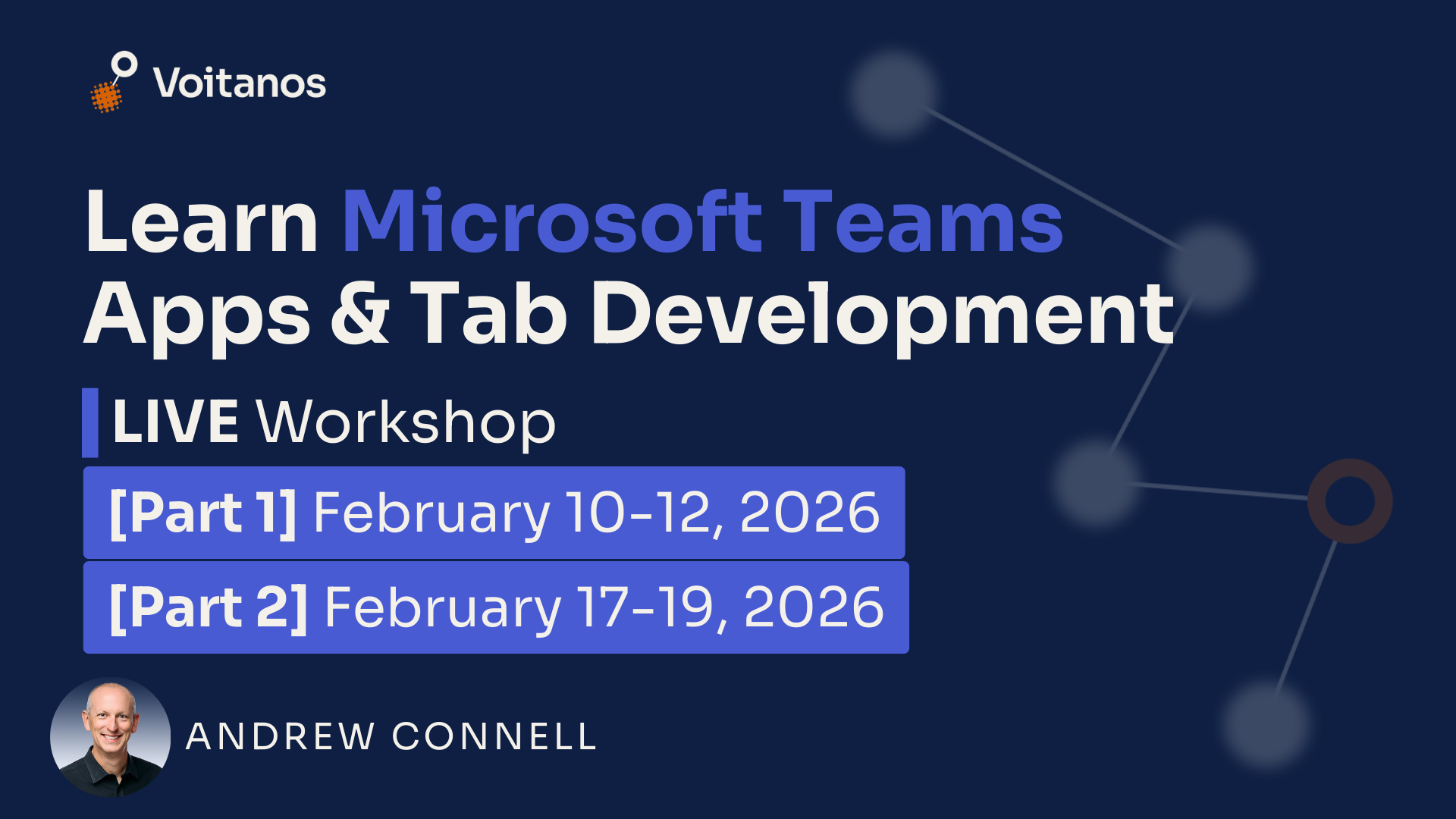
Or… grab one of the discounted early-bird seats and register for my upcoming workshop with two registration options:
Create apps and tabs for Microsoft Teams in this live, multi-day workshop with Andrew Connell! Includes instructor-led demos to apply what you learn in class.
https://www.voitanos.io/workshop-microsoft-teams-apps-tabs/
What You Can Build with Teams Apps
Let me give you some real-world scenarios where Teams apps shine. These different apps can be implemented in different ways. Developers can create personal apps, which are going to be more immersive and have the ability to have multiple tabs in their interface, like some of the native apps that you’ve seen in Microsoft Teams. You can also manifest your app as tabs, either in channels or in group chats or even inside of meetings. Finally, organizations can even take advantage of dialogs inside your apps, including modal dialogs.
Consider the following examples:
Personal Apps
Full single-page applications that appear in the Teams left rail. Think of these as standalone apps that just happen to run inside Teams:
- Employee directories with org chart visualization
- Personal dashboards aggregating data from multiple sources
- Task management apps integrated with Microsoft 365
- Custom reporting tools
Channel Tabs
Context-specific apps that surface data relevant to a specific team or channel:
- Project dashboards showing real-time status
- Document libraries with custom views
- Data visualization for team metrics
- Integration with external systems (CRM, ERP, etc.)
Group Chat Tabs
Collaborative experiences within group conversations:
- Shared task lists for small teams
- Meeting preparation and follow-up tools
- Quick polls and decision-making aids
- Shared resource collections
App Dialogs (formerly task modules)
Modal experiences for capturing data or displaying information:
- Forms for data entry
- Approval workflows
- Configuration panels
- Deep-link content display

Custom apps can use Teams' modal dialogs
The Development Experience
Here’s what the actual development workflow looks like:
1. Create your web app
First, you’re going to create your web app using your preferred tech stack and development tools. This is really no different than creating any other web app today. One thing you do want to think about, though, with this app is that it’s going to be running within the Teams client. You don’t need to worry about things like the left-hand global navigation or a lot of the chrome branding related to your app, because it’s going to be nested inside of the Teams client. You want this to look and feel like the rest of Microsoft Teams so it feels very native to your users who already have experience with Microsoft Teams.
2. Configure the manifest
To make Microsoft Teams aware of your application and enable it for being installed into teams, you then create what’s called a Teams app manifest. This is simply a JSON file that is going to tell Teams about your application. So typical metadata like an ID, a name, a description, and an icon, but it’s also going to have the definition of the different features in Microsoft Teams that it supports.
{
  "version": "1.2.0",
  "id": "00000000-0000-0000-0000-000000000000",
  "icons": {
    "color": "color.png",
    "outline": "outline.png"
  },
  "name": {
    "short": "Personal List Manager",
    "full": "Personal List Manager - Manage your lists (todos, reminders, etc) in Teams."
  },
  "description": {
    "short": "..",
    "full": ".."
  },
  "accentColor": "#FFFFFF",
  "staticTabs": [{
    "entityId": "simplelist1",
    "name": "Simple List",
    "contentUrl": "${{TAB_ENDPOINT}}/tabs/#/simplelist",
    "websiteUrl": "${{TAB_ENDPOINT}}/tabs/#/simplelist",
    "scopes": [ "personal" ]
  }],
  "configurableTabs": [{
    "configurationUrl": "${{TAB_ENDPOINT}}/tabs/#simplemath-config",
    "canUpdateConfiguration": true,
    "scopes": ["team"]
  }]
}
When it comes to just an app, you define things like tabs or personal apps. Then you can add in additional things, like if you supported single sign-on and what’s the ID application associated with it. If you had notifications that you wanted to send to users who use the app through the Activity Feed in the Activity part notification set up inside of Teams, you have to define some pieces there. All of this stuff is defined in a single JSON manifest file.
3. Host your app
Like any other web application, you then need to deploy and host it. That’s just going to be deploying your application and any other resources that your application uses, like storage or keys or caching or media services. You need to make sure that all of those things are deployed in your hosting platform of choice prior to users being able to install your app inside of Teams.
4. Package for Teams
With your web app deployed to your hosting environment, the second thing you are going to create is your Teams app package. This is simply a zip file that contains your Teams app manifest that I explained earlier. It’s going to contain the two images that are associated with your app. These are the icons that Teams will use to show your app both in the Teams store and also anywhere your app is going to be referenced, to give it a little bit of branding.
5. Deploy to Teams
The last step is to deploy your app package to Teams. You can do this in a couple of different ways:
Side-loading apps: The easy way of doing it, especially when you’re doing testing, is to side load your app. This allows you to test your application locally in your own Teams experience without impacting any of your other users. This also can be used for selectively installing your app for specific people if you wanted to do that.
Teams App Store: You also have the ability to deploy your app to your organization’s Teams App Store. Each organization has a single App Store where they can deploy apps. This is going to enable Teams administrators to centrally make the app available for use throughout your tenant. You have a bunch of additional controls here on Teams: who’s allowed to install it. The administrator can even install it and pin it to the left-hand navigation for all users in the organization, or specific users in the organization, or groups of users. Lots of control options here.
Microsoft App Source: You can even go further than this and deploy your app to the public Microsoft marketplace. This is referred to as App Source. This is also how you could pair your application with a monetization model if you are a Microsoft partner, to where companies could buy your application for use in their organization. Similar to other app stores, Microsoft has you go through a certification and review process, and then they also handle all of the e-commerce aspects for your app and only keep a small percentage to account for the review, hosting, and distribution of your app to the different organizations.
Keep in mind, your app’s code base still is something that you maintain. The only thing that this deployment phase deals with is just that app package that contains the zip file that contains the JSON manifest and your two images.
That’s it. No special Microsoft-specific build process. No proprietary deployment pipeline.
Single Sign-On Implementation
One of the nicest parts of creating enterprise applications for use in Microsoft Teams is that, for the most part, you don’t have to worry about a lot of the authentication piece to this, because anybody that uses Microsoft Teams is already going to be authenticated, so this is already going to be taken care of for you.
What you are going to be able to do in your application, though, is, without any additional work, ensure that your app can obtain the identity of the currently signed-in user. That’s just basic information like:
- their name
- their email address
- their ID within the current tenant
You can go further and set up this same single sign-on configuration for your app to get additional permissions to different resources, such as Microsoft Graph, Microsoft Dynamics, or accessing data in SharePoint and OneDrive just to name a few of these different resources.
Your app would be able to then use the ID token that it obtains from Microsoft Teams for the current user and obtain an access token on behalf of the current user once they’ve consented for your app to then go get data from these different services.
You’re not limited to just Microsoft Entra ID security endpoints. You can even set up your single sign-on to also support things that are supported, or that leverage, Google’s identity platform for their APIs or any of the other OAuth-based identity platforms.
The user never sees a traditional login screen. The experience is seamless.
Navigating the SDK Landscape
Let me simplify Microsoft’s confusing SDK guidance:
For client-side Teams apps (tabs, dialogs): Use the Teams JavaScript SDK v2. It’s the current, stable SDK for building tab applications. Import it in your React/Angular/Vue app and use it to:
- Get Teams context (user, team, channel info)
- Configure settings for your tab
- Implement authentication and SSO
- Handle theme changes
- Navigate within Teams
For server-side operations: Use the Teams SDK (formerly the Teams AI Library v2) for the server-side Teams integration aspects of your app in addition to any other server side libraries your app uses.
Ignore the noise. Stick with Teams JavaScript SDK v2 for your tab applications.
Why This Matters Now
Microsoft is pushing AI and Copilot extensibility hard. That’s where the marketing dollars are going.
But for most organizations, the immediate opportunity is simpler: Put your line of business apps where your employees already work.
Teams has 320+ million monthly active users. They’re already authenticated. They’re already in the app. You don’t need to convince them to install another tool or remember another password.
The infrastructure is there. The authentication is there. The deployment mechanism is there.
What’s missing is clear guidance on how to actually build these apps without getting lost in Microsoft’s SDK confusion.
What’s Next
If you’re considering Teams app development, here’s my honest advice:
Start simple. Build a basic personal tab or channel tab. Don’t try to build a complex bot with AI integration on your first project.
Use the Agents Toolkit (ATK) (formerly the Teams Toolkit) for VS Code. Despite my criticisms of Microsoft’s SDK guidance, the Teams Toolkit is actually solid for scaffolding projects and handling local development.
Test across clients. Teams desktop, Teams web, Teams mobile… they all behave slightly differently. Budget time for cross-client testing.
Focus on solving real problems. Don’t build a Teams app because Teams is cool. Build it because your users need the functionality and Teams is the right distribution channel.
The platform is powerful. The opportunity is real. The documentation is frustrating, but the fundamentals are solid.
Want to learn more? I’m hosting a FREE webinar where I’ll walk through exactly this:
Learn why Microsoft Teams is an underrated enterprise app platform offering desktop, mobile, and web clients with any tech stack and built-in SSO.
https://www.voitanos.io/webinars/microsoft-teams-apps-underrated-build-enterprise-appdev/
Or… grab one of the discounted early-bird seats and register for my upcoming workshop with two registration options:
Create apps and tabs for Microsoft Teams in this live, multi-day workshop with Andrew Connell! Includes instructor-led demos to apply what you learn in class.
https://www.voitanos.io/workshop-microsoft-teams-apps-tabs/
What I’m Seeing
This is the frustrating part: most organizations I speak to aren’t even aware Teams Apps are an option. They think Microsoft Teams is all about chat bots or agents. But once I explain how they can create real apps within Microsoft Teams, where their users are already spending a lot of their time, they’re interested.
I’m seeing more organizations realize that Teams apps are perfect for their internal tools and line of business applications.
The ones who figure this out early, before Microsoft’s marketing catches up to the reality, will have a significant advantage.
As I said at the start of this article, keep in mind - if you’re the developer who can build Teams apps for your org, you become the go-to person and irreplaceable expert at your company!
I’m curious - What line of business apps would you move into Microsoft Teams first?

Microsoft MVP, Full-Stack Developer & Chief Course Artisan - Voitanos LLC.
Andrew Connell is a full stack developer who focuses on Microsoft Azure & Microsoft 365. He’s a 22-year recipient of Microsoft’s MVP award and has helped thousands of developers through the various courses he’s authored & taught. Whether it’s an introduction to the entire ecosystem, or a deep dive into a specific software, his resources, tools, and support help web developers become experts in the Microsoft 365 ecosystem, so they can become irreplaceable in their organization.