With the release of SharePoint Framework v1.22 and its significant toolchain changes, I’m seeing renewed interest in SPFx development. That’s great! But I’m also noticing the same core concepts tripping up developers, both newcomers and those who’ve been working with SPFx for years.
If you missed my webinar covering the big shift from Gulp to Heft in SPFx v1.22, check it out for the full story on what changed and why.
Learn how SPFx v1.22's new Heft build system replaces gulp, understand the migration path for existing projects, and master the new toolchain architecture.
https://www.voitanos.io/webinars/sharepoint-framework-new-build-system-gulp-out-heft-in/
In this article, I cover six (6) things I consider table stakes for every SharePoint Framework developer. These are concepts that cause confusion, and understanding them will save you time and frustration.

#1: You’ve never installed the SharePoint Framework
Here’s something that surprises many developers: you don’t install the SharePoint Framework. You don’t today and you never have.
The SharePoint Framework isn’t something you install on your developer workstation, your SharePoint sites, or even on a SharePoint Server on-premises environment. So what’s actually happening during that setup process?
When the setup documentation tells you to run npm install -g @microsoft/generator-sharepoint, you’re installing the SharePoint Framework generator for Yeoman. That’s it. It’s a plugin for Yeoman, a project scaffolding tool. By installing this generator, you’re giving Yeoman the ability to create the folders and files needed for a SharePoint Framework project.
Think of it like React, Angular, or jQuery. You don’t install these frameworks globally on your workstation; you install them into individual projects. This differs from tools like Azure Functions, which typically require a globally installed runtime - the Azure Functions Core Tools.

You
Each version of the Yeoman generator creates projects for a specific SPFx version. When Microsoft released the SPFx v1.22, they released an updated Yeoman generator that scaffolds projects using that version’s structure and dependencies. Check out my article on which version of the SPFx generator to install for more details on this:
https://www.voitanos.io/blog/spfx-which-version-of-spfx-generator-to-install/

This architecture is also why you can work with multiple projects using different SPFx versions on the same computer without reinstalling anything.
Want proof?
Take a brand new computer… spin up a fresh virtual machine in Azure if you want. Then…
- Copy a SharePoint Framework project to it.
- Install a supported version of Node.js for that project’s SPFx version.
- Run the build using heft start (or, in pre-SPFx v1.22 versions, run gulp serve).
It works.
You didn’t install Yeoman.
You didn’t install the generator.
There’s no “SharePoint Framework install” because you don’t ever install the SharePoint Framework.
Now that we’ve cleared up what you’re actually installing, let’s talk about the two setup steps you should complete before writing any code.
#2: Trust the developer certificate
When you debug a SharePoint Framework project, you use a real SharePoint page in your tenant. Your JavaScript bundles and manifest files get served from your local machine at https://localhost. The SPFx runtime in the browser requests these files from your local web server.
Running heft start (or formerly gulp serve) starts a local HTTPS web server secured with a self-signed certificate. Since it’s self-signed, your computer won’t trust it by default.
Microsoft includes a command in the toolchain to handle this. Run heft trust-dev-cert (or formerly gulp trust-dev-cert) to configure your computer to trust the developer certificate. You typically only need to do this once, though you may need to repeat it if you’re switching between very old and new SPFx versions or if the certificate expires.
There’s a chicken-and-egg situation here: you need to create a project first to get the toolchain that includes the trust command.
Once you’ve created your first project, run the trust command before trying to debug.
Most developers find this out real fast - if you forget to do this, when you debug your first project, the console will make you aware of it:

Prior to running `trust-dev-cert` to trust the self-signed certificate
#3: Set the tenant domain environment variable
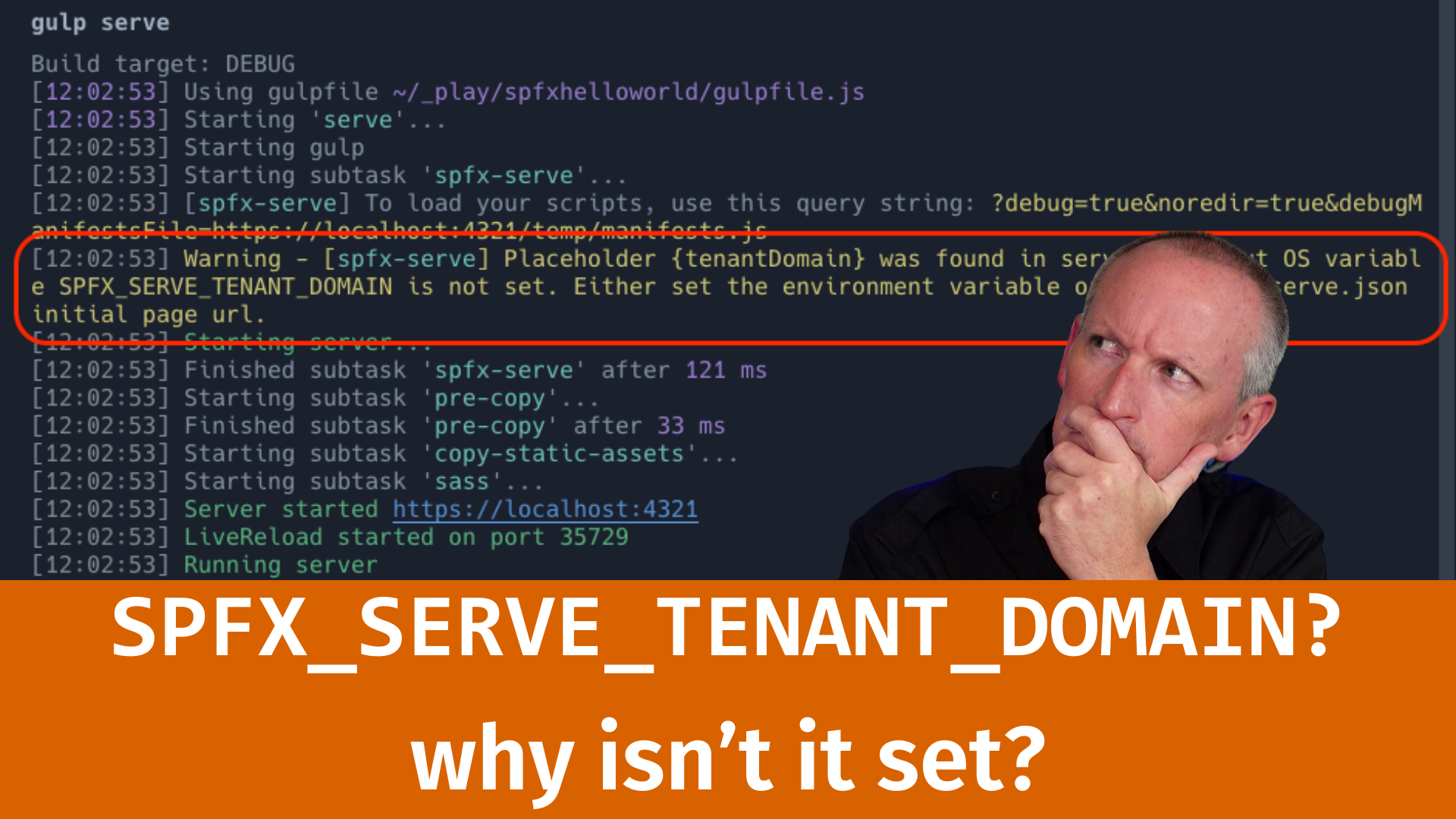
Set the environment variable SPFX_SERV_TENANT_DOMAIN to point to your SharePoint tenant domain.
When you run heft start or gulp serve, the toolchain launches your browser to a test page. In recent SPFx versions, the ./config/serve.json file in your project’s config folder defines the start URL with a {tenantDomain} token. If you’ve set the environment variable, the toolchain replaces that token with your tenant domain automatically.
{
  "$schema": "https://developer.microsoft.com/json-schemas/spfx-build/spfx-serve.schema.json",
  "port": 4321,
  "https": true,
  "initialPage": "https://{tenantDomain}/_layouts/workbench.aspx"
}
Without this, you’ll see a console warning telling you to update the URL manually or set the variable.
Save yourself the hassle and set this up front:
Why doesn't the SharePoint hosted workbench load for new projects? You probably forgot to do this one small step when you setup your dev environment.
https://www.voitanos.io/blog/set-spfx-hosted-workbench-test-site/
#4: Different SPFx versions require different Node.js versions
Here’s where things get complicated for developers juggling multiple projects.
The SharePoint Framework always uses LTS (long-term support) versions of Node.js (the even-numbered major releases). But different SPFx versions don’t all support the same Node.js versions. As Node.js improves, newer SPFx versions take advantage of updated features and drop support for older, and unsupported, Node.js versions.
The challenge: by default, you can only install one version of Node.js at a time. A Node.js installation has a one-to-one relationship with a global package registry. Anything you install globally (like Yeoman or the generator) lives in that registry.
If you have multiple SPFx projects that require different Node.js versions, you face a tedious process. Every time you switch projects, you’d need to uninstall Node.js, reinstall the version your current project requires, then reinstall all your global packages.
This is where Node version managers save the day. These tools let you install multiple Node.js versions in separate folders, each with its own global registry.
How do they work? When you install Node.js, it updates your system’s PATH environment variable to point to the Node executable location. On Windows, that’s typically C:\Program Files\Node.js. On macOS, that’s typically /usr/local/bin.
Node version managers work by updating the PATH on the fly when you switch versions, pointing it to whichever Node.js installation you’ve selected.
My recommendation is FNM (Fast Node Manager). It’s cross-platform (Windows and macOS), blazing fast, and simpler to use than the older NVM options.
Discover why Fast Node Manager (FNM) beats NVM and NVM-Windows with cross-platform support, blazing speed, and better reliability for Node.js development.
https://www.voitanos.io/blog/why-i-switched-from-nvm-to-fast-node-manager/
I’ve also written about better Node.js install management with Node Version Managers if you want the full rundown on your options.
Learn how using a node version manager (NVM) is a fantastic tool for developers who rely on Node.js... including SharePoint Framework (SPFx) developers!
https://www.voitanos.io/blog/better-node-js-install-management-with-node-version-manager/
#5: NPM vulnerabilities aren’t deployed to production
When you run npm install on a SharePoint Framework project, you’ll likely see warnings about deprecated packages or security vulnerabilities… low, moderate, or even critical severity.

NPM Vulnerabilities post running `npm install`
Before you panic (or before your IT security team panics), understand what’s actually happening.
Those vulnerable packages are installed in your node_modules folder within the project on your local machine. They’re not included in the generated *.sppkg file that’s deployed to SharePoint.
Microsoft chose Node.js as the project structure for building SPFx projects. But you’re not deploying a Node.js project to SharePoint. When you build your project, the toolchain:
- Compiles TypeScript to JavaScript
- Compiles Sass files to CSS
- Bundles JavaScript and CSS using Webpack
- Packages everything into a solution file (an *.sppkg file, which is essentially a ZIP file)
That package contains your bundled code plus some JSON and XML manifest files. It doesn’t include the node_modules folder.
I’m not suggesting we should ignore vulnerabilities entirely. But the vulnerabilities you see during npm install exist only in your local development environment. They’re not deployed to source control, and they’re not deployed to SharePoint.
The exception: if you explicitly include a vulnerable package in your bundle (say, a date/time library you chose to use), that code becomes part of your deployed solution. But that’s a decision you made, not something that happens by default.
I’ve written more about this topic as well:
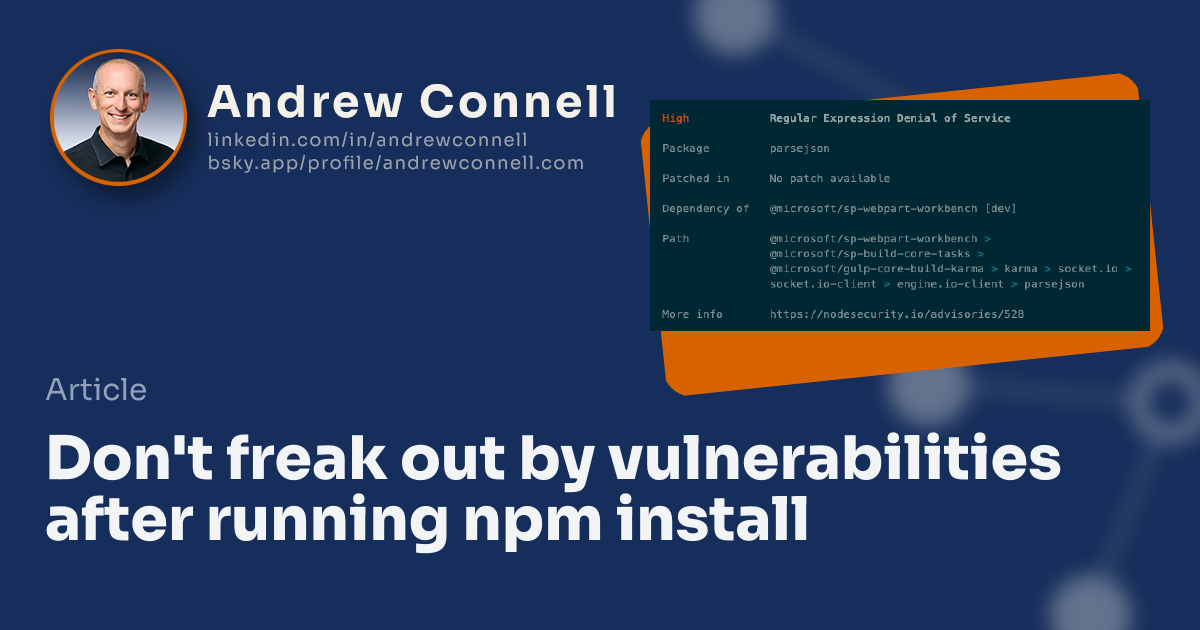
I have seen questions since the folks at npm added an automatic scan for vulnerabilities after every npm install. In my opinion you shouldn't be alarmed.
https://www.voitanos.io/blog/don-t-be-alarmed-by-vulnerabilities-after-running-npm-install/
#6: NPM connectivity issues in locked-down environments
This one doesn’t affect everyone but it isn’t rare. In fact, it’s common enough that I see it regularly.
If you’re working in a corporate environment with a proxy server, you might run into connectivity issues when NPM tries to download packages. By default, Node.js and NPM aren’t configured to work with corporate proxies.
Symptoms: your first npm install fails with timeout or connection errors, even though you can browse the web normally.
> npm install -g yo gulp-cli @microsoft/generator-sharepoint
> npm ERR! code ETIMEDOUT
> npm ERR! errno ETIMEDOUT
> npm ERR! network request to https://registry.npmjs.org/yo failed, reason connect ETIMEDOUT: XXX.XXX.XXX.XXX:443
> npm ERR! network This is a problem related to network connectivity.
> npm ERR! network In most cases you are behind a proxy or have bad network settings.
> npm ERR! network
> npm ERR! network If you are behind a proxy, please make sure that the
> npm ERR! network 'proxy' config is set properly. See: 'npm help config'
The fix: configure NPM to route requests through your corporate proxy. This is a one-time setup, and I’ve documented the process in Node & NPM: fix proxy config.
Learn how to configure your development environment for npm to work with corporate web proxies to install npm packages.
https://www.voitanos.io/blog/node-npm-fix-proxy-config/
It’s not a blocker, just a configuration step you need to handle if you’re in this situation.
Summary
These six concepts are foundational knowledge for every SharePoint Framework developer:
- You don’t install the SharePoint Framework. You install the Yeoman generator, which scaffolds projects for a specific SPFx version.
- Set up your dev environment: trust the developer certificate.
- Set up your dev environment: set the
SPFX_SERV_TENANT_DOMAINenvironment variable. - Use a Node Version Manager. Different SPFx versions require different Node.js versions. FNM makes switching painless.
- NPM vulnerabilities stay local. They’re not deployed to SharePoint, which should ease IT security concerns.
- Configure NPM for corporate proxies. If you’re behind a corporate firewall, you’ll need to set this up once.
If you want to dive deeper into SharePoint Framework development, I’ve got a hands-on workshop starting this week… there’s still time to register & get in on the early bird discount!
Learn the SharePoint Framework (SPFx) in this live, multi-day workshop with Andrew Connell! Includes instructor-led demos to apply what you learned in class.
https://www.voitanos.io/workshop-sharepoint-framework/
I’m curious - were any of these new to you?
Do you have other core concepts you think every SPFx developer should know?
Leave a comment below to share your thoughts, and feel free to ask questions about any of these topics.

Microsoft MVP, Full-Stack Developer & Chief Course Artisan - Voitanos LLC.
Andrew Connell is a full stack developer who focuses on Microsoft Azure & Microsoft 365. He’s a 22-year recipient of Microsoft’s MVP award and has helped thousands of developers through the various courses he’s authored & taught. Whether it’s an introduction to the entire ecosystem, or a deep dive into a specific software, his resources, tools, and support help web developers become experts in the Microsoft 365 ecosystem, so they can become irreplaceable in their organization.